1
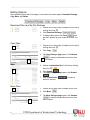
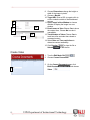
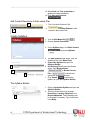
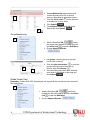
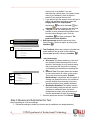
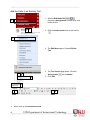
Step 4 Deploy the Test
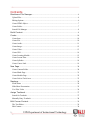
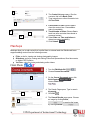
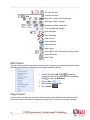
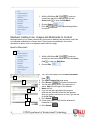
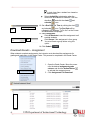
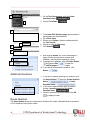
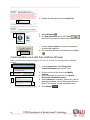
1. On the Create Test page, choose a test from the
add test list
1
2. Click Submit
Availability page.
to open the Test
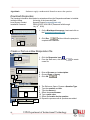
Step 5 Make the Test Available to Users
This is the most important step in the test creation process, as it will allow students to take the
test. This step can be completed as part of the creation process, or prior to the test
administration.
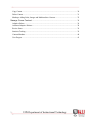
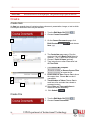
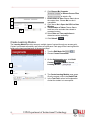
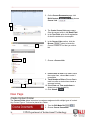
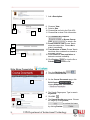
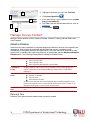
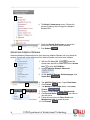
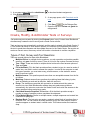
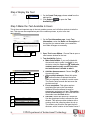
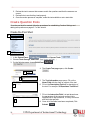
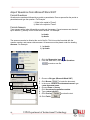
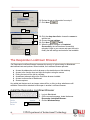
1. On the Test Information page, locate Test
Information, review the Name and Description of
the test that you entered when you created the
test. Make changes as necessary.
1
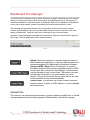
2. Open Test in new Widow - Choose Yes to open a
new browser window for the test.
2
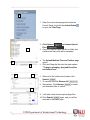
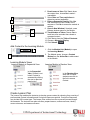
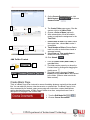
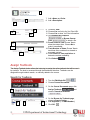
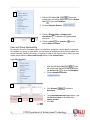
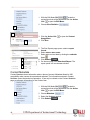
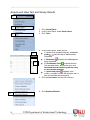
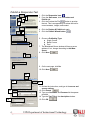
3. Test Availability Options:
a. Make link available: If you are finished with
the test and want to make it available to your
students, select the Yes button
Otherwise,
students won't actually see the link to the
test and thus won't be able to take it.
3a
3c
3d
3e
3f
3g
54
3b
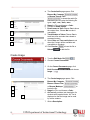
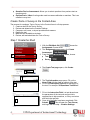
b. Add New Announcement: Choose Yes
to
Announce the test.
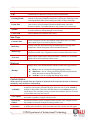
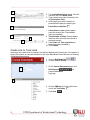
c. Allow multiple attempts: Select this option
to allow students to attempt the test as
often as necessary to achieve a certain score.
The Grade Center records the last score the
student received.
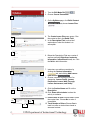
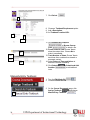
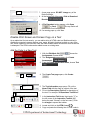
d. Force completion: This option requires
completing the test on the first attempt.
Students will not be allowed to save an
assessment and return to it later. This option
is not recommended, as it will close the test if
the student uses the Back button
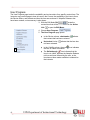
e. Set timer: Select this option for a timed test.
Use the drop down boxes to allocate the time
allowed. This option provides students with a
running clock and a warning when time is up.
The student may finish the test past the time
allotment, with a notation in the Grade Center if
UIW Department of Instructional Technology