1
As of Version 3.3.1, you can no longer modify the Car, Scenery, or Sound chooser trees. If you want the files in these sets to be
organized differently, you can rearrange them on the disk and the chooser trees will reflect your changes. The exception is the local
Layout chooser, where you can add folders of your own and reorganize the tree to suit.
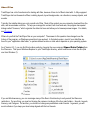
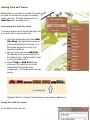
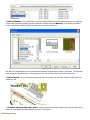
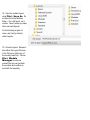
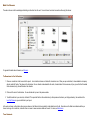
*New in Version 3.3.1: you can now easily locate and inspect your application data directory. Choose Open Data Folder
from the File menu, and it will bring up Windows Explorer in that location.
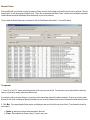
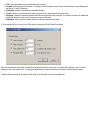
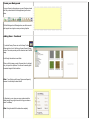
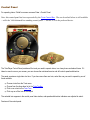
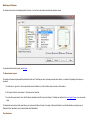
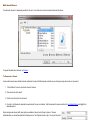
Operating a Chooser
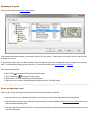
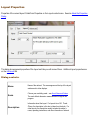
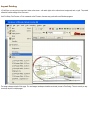
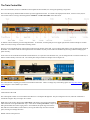
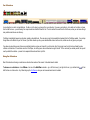
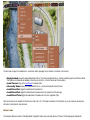
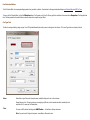
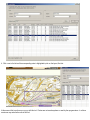
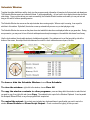
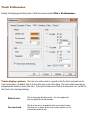
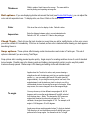
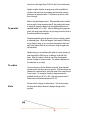
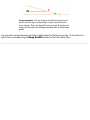
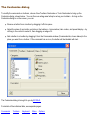
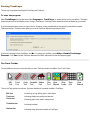
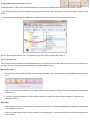
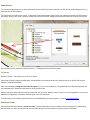
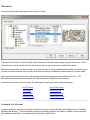
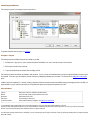
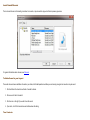
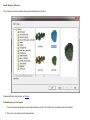
Components of a chooser work generally as follows. Details differ; see the individual help pages.
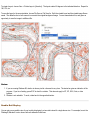
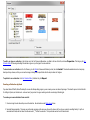
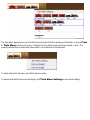
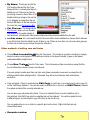
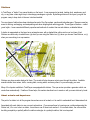
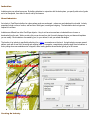
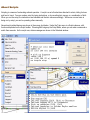
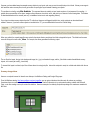
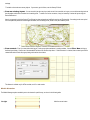
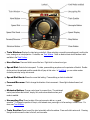
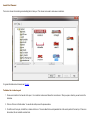
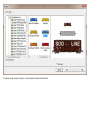
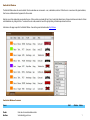
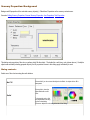
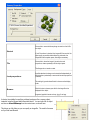
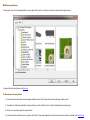
Tree: Click a folder to select it. If it contains files, you will see a list of them in the list window. If it contains subfolders, click the +
sign to expand it so you can select a subfolder.
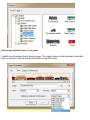
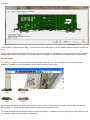
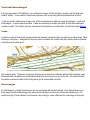
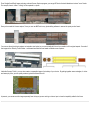
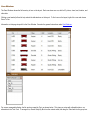
List: The list window shows a collection of files or objects as either a table or a set of icons. Icon view can be changed to list view
using the context menu. Click an icon or a row of the table to make a selection; in most cases you will then see a picture of the
selected object in the preview window.
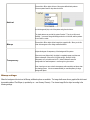
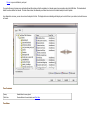
Preview: The preview window shows a small picture. In the Sound chooser, you can click the picture to play the sound; in other
choosers the preview is not interactive.
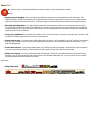
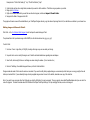
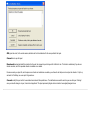
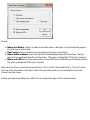
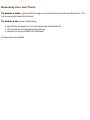
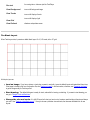
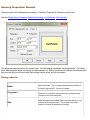
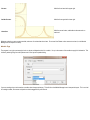
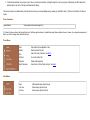
Buttons: Each chooser has four buttons at the lower right, which differ depending on the context. Click the left button (which
might say OK, Download, Install, Add Car, or Done) to carry out the default action on the selected item; Cancel to take down
the chooser without further action; Browse to browse the file system for a layout (available only in the local Layout chooser); or Help
to go to the appropriate page of the help system.
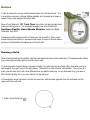
Resizing: A chooser window can be resized by dragging its lower left corner. Individual panes can be resized by dragging the
divider bars between them.
Modality: Layout and Sound choosers are "modal," meaning once you click OK, the selected item is opened and the chooser
goes away. Car collection and Scenery choosers are not: they remain on the screen as you choose multiple items.
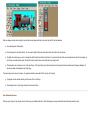
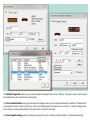
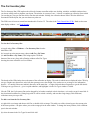
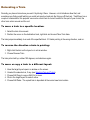
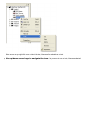
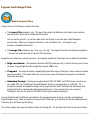
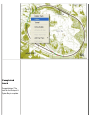
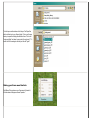
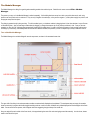
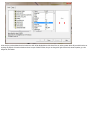
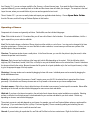
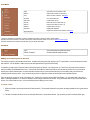
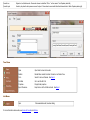
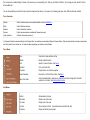
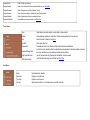
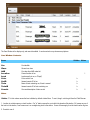
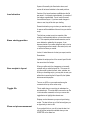
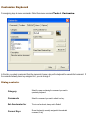
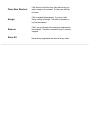
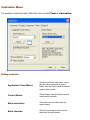
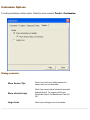
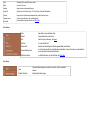
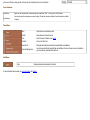
Context menus: Right-click an item in either the tree or list window to see a menu of context-specific commands. Menus differ
depending on the chooser; see the individual help pages for menu screen shots and details.
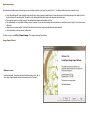
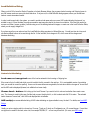
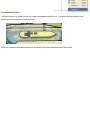
Web tab: If you have a live internet connection, the web tab of each chooser shows content available on our website. Selecting
an item or collection from this tab causes it to be downloaded to your machine and added to your local content. Details vary
depending on chooser; see individual help pages.
The content you see in a web tab depends on your license; for example, you won't see Premium folders unless you purchased the
full package. (If you are bothered by this, try Help > Purchase Upgrade.) We are constantly updating and enhancing the web
collections, so check back once in a while to see what's new.
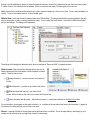
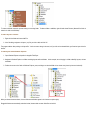
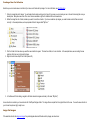
Search: If you are looking for a particular file, use Find and Find Next on the tree context menu. Right-click a folder to search