1
Local Car Chooser
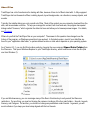
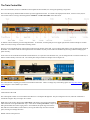
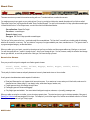
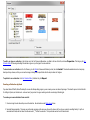
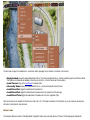
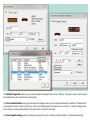
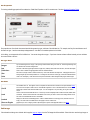
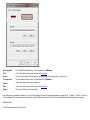
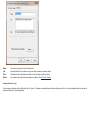
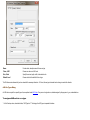
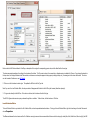
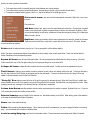
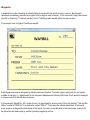
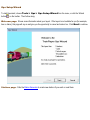
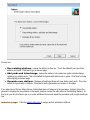
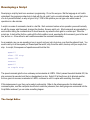
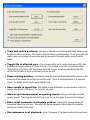
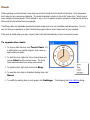
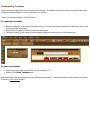
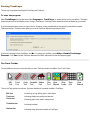
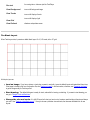
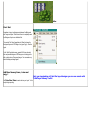
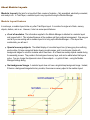
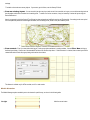
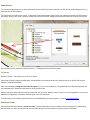
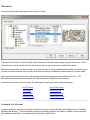
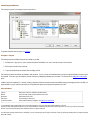
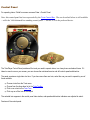
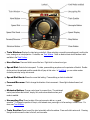
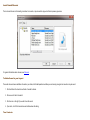
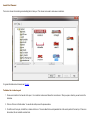
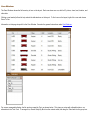
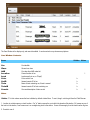
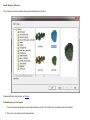
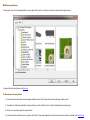
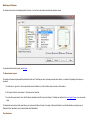
The local car chooser is for selecting cars and adding them to the layout. This chooser is also used to create new car collections.
For general information about choosers, see Choosers.
To Add a Car to the Layout
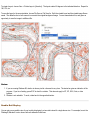
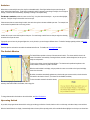
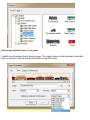
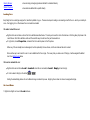
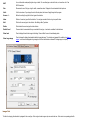
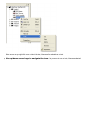
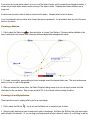
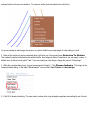
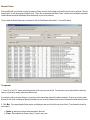
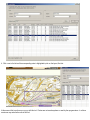
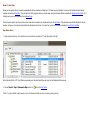
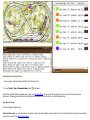
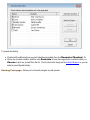
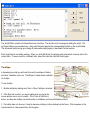
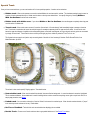
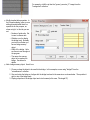
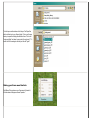
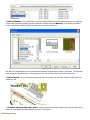
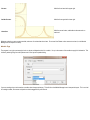
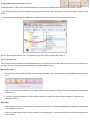
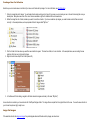
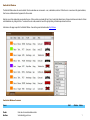
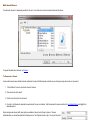
1. Choose a car collection in the tree and click to open it. A car collection is shown as a folder with a locomotive icon. When you open a collection, you see its cars in the
list window.
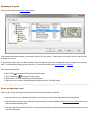
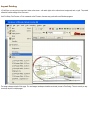
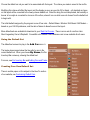
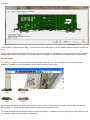
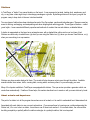
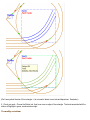
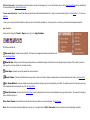
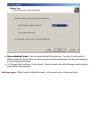
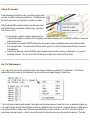
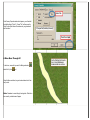
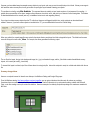
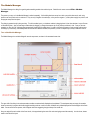
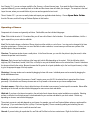
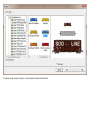
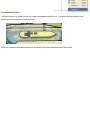
2. Click one of the cars in the list window. You see its side and top view in the preview window.
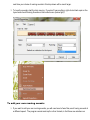
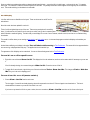
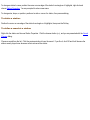
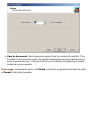
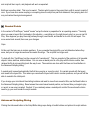
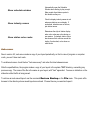
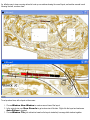
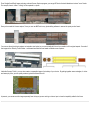
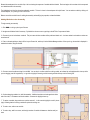
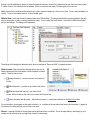
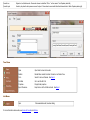
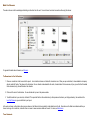
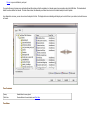
3. To add this car to the layout, click Add Car, or double-click the icon. The car is added to the currently-selected train at the current position of the insert pin. If there is no
train selected, the car is added to a random track.