1
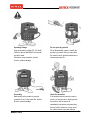
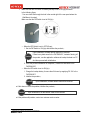
③
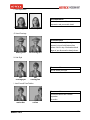
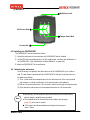
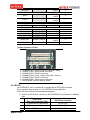
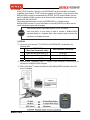
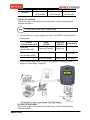
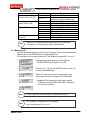
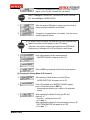
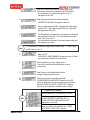
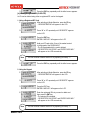
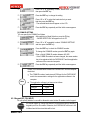
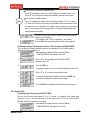
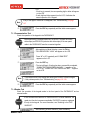
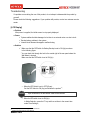
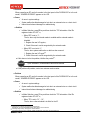
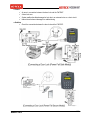
Hold an RF card that you want to register within 10cm
of the reader located in the keypad of the FACE006/007.
- The message that is similar to the figure in step ④
will appear on the LCD.
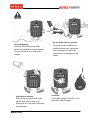
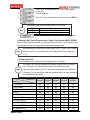
④
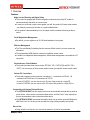
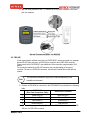
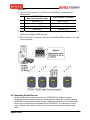
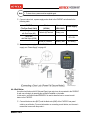
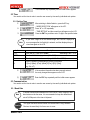
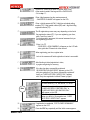
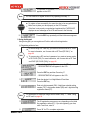
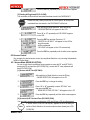
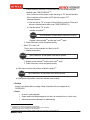
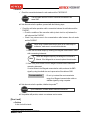
Enter 4-digit password as the master password.
- “MASTER ID CHANGE” will appear on the LCD.
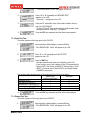
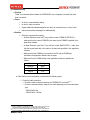
⑤
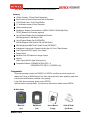
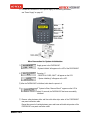
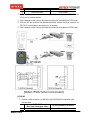
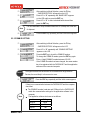
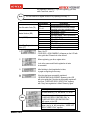
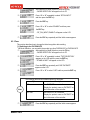
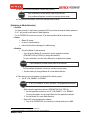
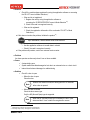
Enter a 4-digit password (PW), 2-digit time schedule setting
number (TS), 1-digit reader number (RD) and 1-digit facial
flag registration status (FF).
⑥
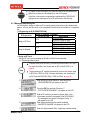
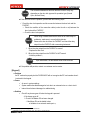
The ID registration process may vary depending on the facial
flag registration status (FF). If you are registering your face,
enter 1 and if not, enter 0.
For the description purposes, this manual assumes that you
are registering your face.
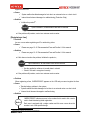
Note
For information on valid input range, see the table in step ⑤ under “Using
an RF card” on page 58.
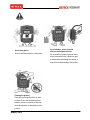
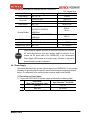
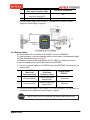
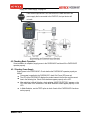
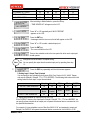
⑦
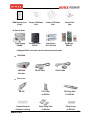
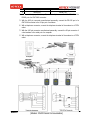
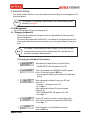
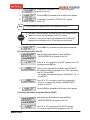
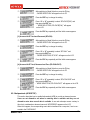
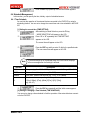
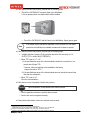
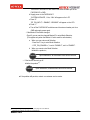
Enter 1 for FF.
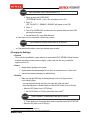
- “FACE REG. LOOK! CAMERA!” will appear on the LCD with
voice guide that “Please look at the camera”
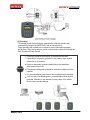
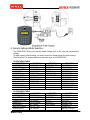
⑧
When registering your face, register twice.
Look at the camera until facial registration in twice
is successful.
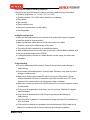
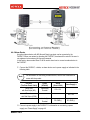
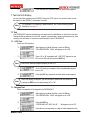
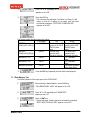
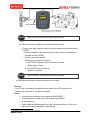
⑨
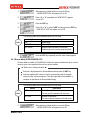
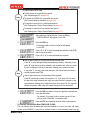
After finishing to facial registration in twice,
try again recognizing for accuracy.
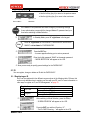
⑩
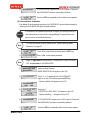
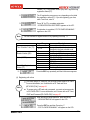
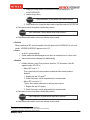
If the face has been successfully registered,
“ID REGISTRATION SUCCESS!!” appears on the LCD
with voice guide that “Your face is successfully registered”.
And if not, “USER NOT REG.!! VERIFY FAIL” appears
with “Sorry, face registration is failed. Please try again”.
※ Registration fail message
In other cases: e.g. TS, RD, MODE, FF, ID etc.
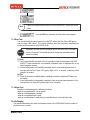
Note
MAMFAC7HE10
When fail to register first or second face,
“USER NOT REG.!! FIRST REG FAIL” or
“USER NOT REG.!! SECOND REG FAIL”
will appear on the LCD.
After twice facial registration is successful,
when you fail to try a recognition test, “USER
NOT REG.!! VERIFY FAIL!” appears.
60