1
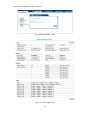
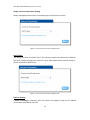
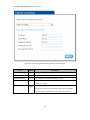
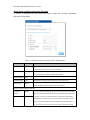
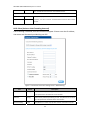
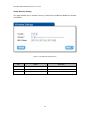
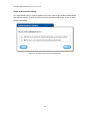
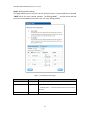
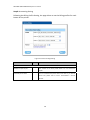
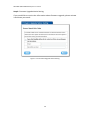
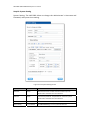
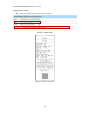
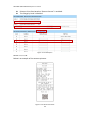
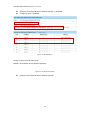
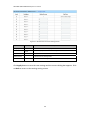
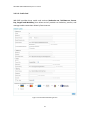
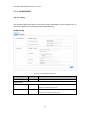
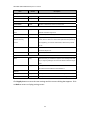
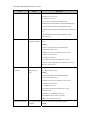
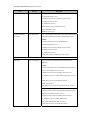
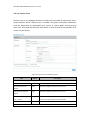
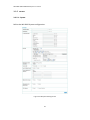
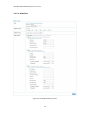
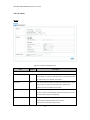
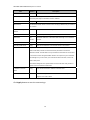
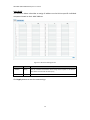
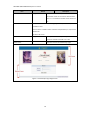
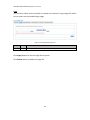
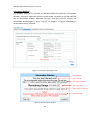
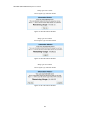
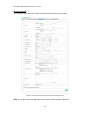
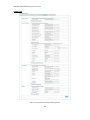
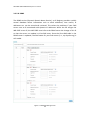
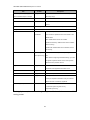
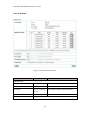
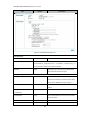
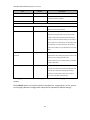
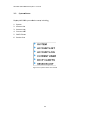
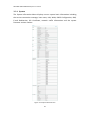
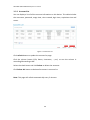
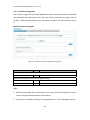
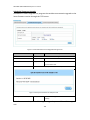
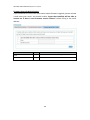
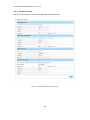
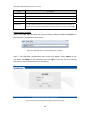
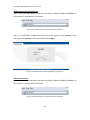
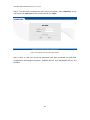
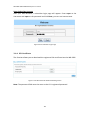
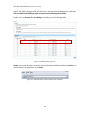
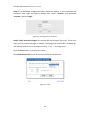
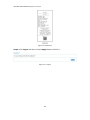
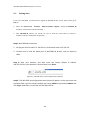
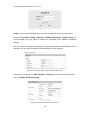
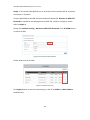
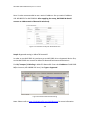
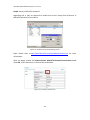
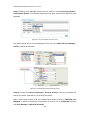
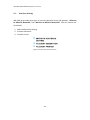
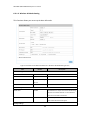
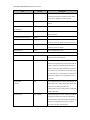
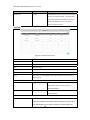
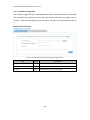
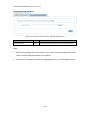
WG‐500P & WG‐500P M Hotspot in a Printer Step 9: Binding User Manager Profiles on the buttons. Check Account Generator ‐ Three‐button printer. The Profiles should show up after queried from MikroTik User Manager. Figure 6‐2‐12 Three Button Printer Screen The queried data will be corresponding to what you set in MikroTik User Manager ‐ Profile in MikroTik RouterOS. Figure 6‐2‐13 MikeoTik RouterOS Setting Screen Step 10: Please find Account Generator ‐ Account Printout. You can customize the text on the ticket. And then try to printout the ticket. Note: These steps assume that you already have proper profiles in MikroTik User Manager. It doesn’t include the instructions of how to set up IP/Hotspot function and User Manager in MikroTik RouterOS. 132