1
Tag and Jum
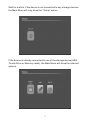
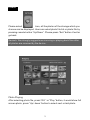
The playing time can be recorded, press “ Tag” button while playing
videos, it would start to record the playing time,
when
Icon appeared on up -right side of screen, the playing
time was recorded successfully. When you want to replay the video,
press “Jump “button, the
Icon would display on screen, it
jumps to the recorded time and go on playing from that time. Tag has
power stop memory, it can set a separate recording point of each video
(if to set many recording points on one video, only the last one is valid)
Remark: due to the differences of video coding, the tag function may
not be valid for some video formats)
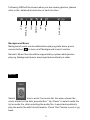
Channel switch (Remark: need video files supported)
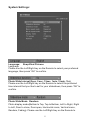
When playing 2.1 channel movies, press “Channel “button to change
languages.
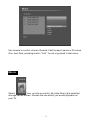
Subtitle adjustment
(Remark: The subtitle is only available when you watch the video in AVI
format)
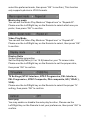
Press
button, or “OSD “button or “OK “button to adjust. After
finish,
Icon appears on up-right side of screen.
If need to cancel subtitle function, please repeat the above-mentioned
operation steps, you will successfully cancel this function when
Icon appears.
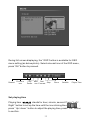
Please make sure of the following request when using subtitle:
1: Subtitle format: only support SRT, SSA, ASS, SMI four kinds of ANSI
encoding format, not support figure format subtitle. (Remark: Please
refer to FAQ-7 on how to make a subtitle file with ANSI encoding format)
2: When naming the subtitle file, it should correspond with the video file
name.
For example: Movie name: a. XXX
Subtitle name must be: a.XXX (Remark: XXX stands for the
supportable subtitle suffix)
3: Subtitle name can not be too long or complex symbols. (Suggest
13