1
Catalyst Manufacturing User Manual
Create/Maintain Engineering Changes
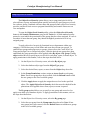
The Engineering Change Control Master can be opened either from the
Engineering page of the Item Master or by selecting Engineering Master from the Data
Maintenance tab. The Engineering Change Control Master is used to track the status and
history of engineering change orders associated with an item.
The engineering change history is displayed and viewed by revision number. The
records are sorted by descending Create Date and can be viewed by using the navigation
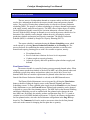
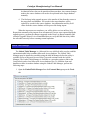
buttons at the bottom of the screen. To add a new engineering change order, select an
item number from the drop-down list and click the new record button
located beside
the navigation buttons. To complete the ECO record, complete the remaining fields as
defined below.
Revision No.: the version number assigned to the change order for the item. The revision
number is a numeric field that can either be updated manually or, if revision control is
activated for the item, can be selected from the drop-down list.
ECO Status: the engineering change order status for the revision. The default status
values include Specification, Design, Test, Prototype, Approval, Production, and
Superseded. The status values can be changed to meet internal requirements by editing
the ECO status table.
Last Rev. No.: a reference to the superseded revision number for the item.
Assigned To: the person responsible for documenting the change control process for the
item. To add or edit this list, click the adjacent edit button.
Create Date: the date the engineering change order was created.
Approved By: the person who approved the final drawing and/or specifications for the
item. To add or edit this list, click the adjacent edit button.
Approval Date: the date the engineering change order was approved for production.
Effective Date: the date the new revision can be used in production. This field is used for
reference only. The actual effective start and stop dates used by MRP and costing should
be maintained in the bill-of-material section of the product configuration for the item.
Drawing/Spec File: the path and file name for the drawing or specification file
associated with an item. The Browse button can be used to search local or mapped drives
for the path and file name. Catalyst supports Microsoft Word®, Adobe Acrobat®, and
AutoCAD® files (.doc, .rtf, .pdf, .jpg, .gif, .htm, .html, .dwg, .dwf, and .dxf file
extensions). The drawing/specification file can be opened by clicking the image.
40