1
BackupEDGE / RecoverEDGE Installation & Configuration
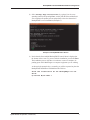
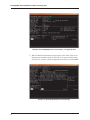
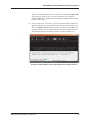
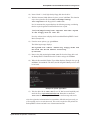
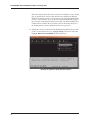
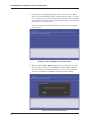
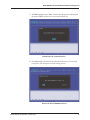
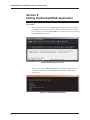
8) Select Backup Edge Installation by typing 13 (or the corresponding number) and pressing Enter. At this point the PressureMAP software completes the update process and performs a check to determine if
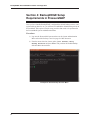
BackupEDGE is a new installation (Example 7).
Example 7: BackupEDGE Detect Screen
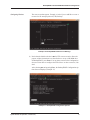
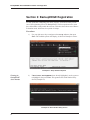
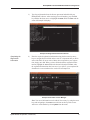
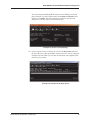
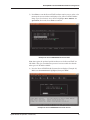
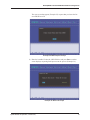
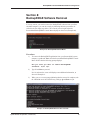
9) Notice that the PressureMAP BackupEDGE Control Menu is displayed at
the bottom of the screen. To proceed with the installation, press I and Enter.
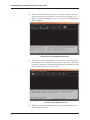
The installation process will take a few minutes or more to complete, depending upon which MAP Engine or computer equipment you are running.
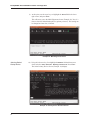
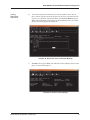
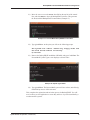
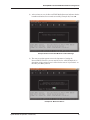
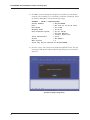
As shown in the prompt below, eventually you will be requested to place the
BackupEDGE Installation CD-ROM into the CD drive:
Place the installation CD for BackupEdge into CD
drive:
C)ontinue M)ain Menu ?
System Studies Incorporated (2580806.FSD)
7