1
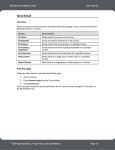
1. Click View Grades on the homepage.
2. On the next page, click on the name of the course.
3. The Gradebook opens. Locate the assignment, and the grade will be under the Points
Possible column.
4. There are a number of symbols that may appear in the Points Possible column instead
of a numeric grade:
In Progress
No Information
Exclamation Point:
Question Mark
Checkmark
Grade
A student has begun, but not completed the assignment, or
the student has saved, but not submitted an assignment. Reopen the assignment and SUBMIT it.
A student has not begun the Assessment.
The assessment or assignment needs to be graded by the
instructor.
Gradebook Error. This may appear when an auto-grade
assessment was not completed prior to submission.
Item has been completed by the student, but the item is nongraded (such as a survey).
An item as been graded. This grade also appears on the
student’s Blackboard course page.
Send Email
The Send Email feature allows you to send email to specific students or groups enrolled in the
course. Blackboard mail sends mail through Outlook (Cardinal Mail). Email can be sent from
either Blackboard homepage or the Blackboard course. Sending email from the Blackboard
home page requires the additional step of selecting a course.
Sending Mail from the Blackboard Homepage:
1. Locate and click Send Email on the Tools menu.
2. On the following page, locate and click on a course.
3. Choose the group or users who will receive the mail.
4. A new page appears with an email form, fill out the subject line, message text, and
add attachments if necessary.
5. Click Submit.
6
UIW Department of Instructional Technology