1
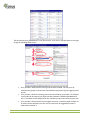
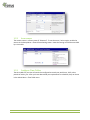
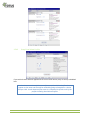
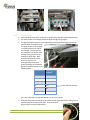
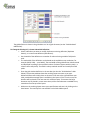
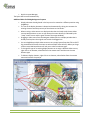
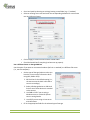
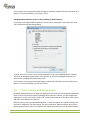
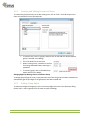
• Click on OK to close the Properties of dialog. Setting the Instruction File for the Camera To set the instruction file: • • • Open the camera’s Properties of dialog doing one of the following: Right-click on a camera in the VIDEO SOURCES > Cameras section of the Navigator sidebar panel and select Properties from the context menu. Right-click on a camera in any layout and select Properties from the context menu. Open the Display tab. Select the desired Instruction file (e.g. D:\Instructions\EmergencyProcedures. txt) or enter a URL (e.g. http://webserver/Instructions/) as required. Configuring the Windows Firewall on the MxControlCenter Computer The remote control and alarm handling features of MxControlCenter rely on network messages (IP packets) that are sent from the cameras to the MxControlCenter computer. A built-in or thirdparty firewall product can block incoming IP packets on the MxControlCenter computer and thus prevent the proper functioning of these features. Proceed as follows to allow port 31754 of the example through the Windows firewall: • • • • • • • • • Open the Windows Control Panel (Start > Settings > Control Panel). Double-click on the Windows Firewall icon. In the Windows Firewall dialog, click on Change settings. Click on Continue if the system asks for administrative permission. In the Windows Firewall Settings dialog, click on the Exceptions tab. Click on the Add port button. In the Add a Port dialog, enter a descriptive name (e.g. MxCC Alarm Handling Port) and the port number that used to receive network messages on the MxControlCenter computer (31754 in this example). Make sure that the TCP option is activated and click on OK. Close all open Firewall-related dialogs and the Control Panel. Testing the IP Address and Port • Open the Camera Configuration dialog. • Click in the Network Messages tab. 128 TSP Series User Manual