1
Using the Slider for Navigating Recordings
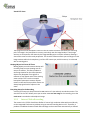
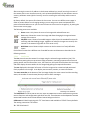
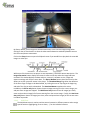
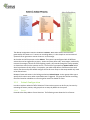
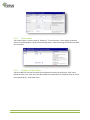
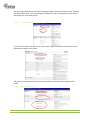
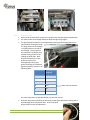
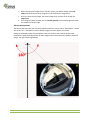
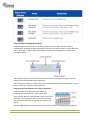
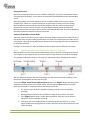
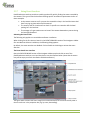
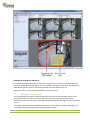
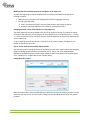
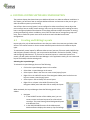
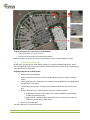
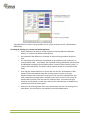
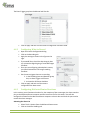
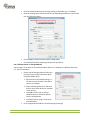
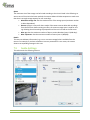
In addition to the playback buttons, the Player sidebar contains a slider control for quickly
navigating the recordings. Drag the red position indicator to the right and left to set the date/time
you are looking for. Let go of the position indicator to show the recording that is closest to the
selected date/time.
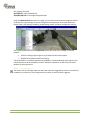
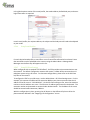
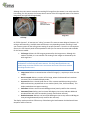
The date/time fields at the top show the date and time of the first recorded image, the current
image and the last recorded image, respectively.
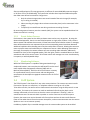
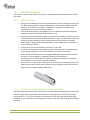
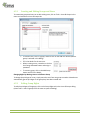
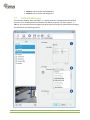
The clip start/end markers are only visible if you have activated the Marker Mode button. They are
used to select time ranges for exporting later on
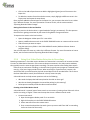
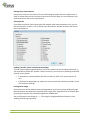
Using the Date/Time Control to Set a Search Date/Time
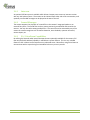
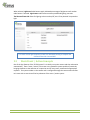
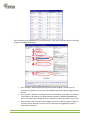
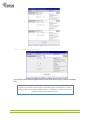
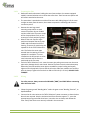
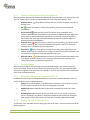
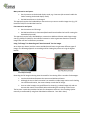
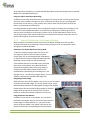
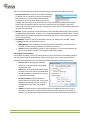
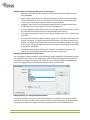
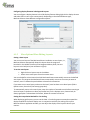
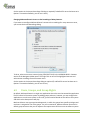
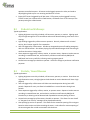
Another method for finding events is to search for
recordings that occurred near a specific date/ time.
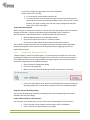
Enter a search date in the left field and a search time in the
right field. If you click on the down arrow of the left field,
you can select a date from the calendar that pops up (see
figure).
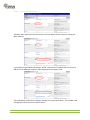
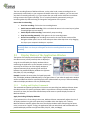
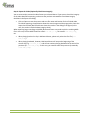
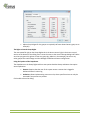
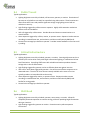
Clicking on Go to starts searching for the recording that is closest to the date/time you specified.
TSP Series User Manual
81