1
7.3 SETTINGS (continued)
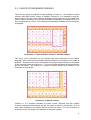
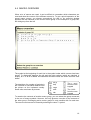
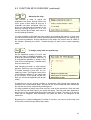
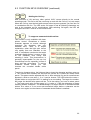
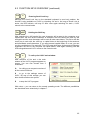
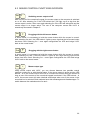
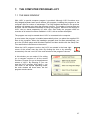
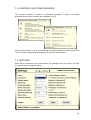
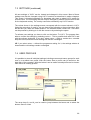
All user settings of LUCY can be viewed and changed in this screen. Most of these
settings can also be changed using LUCY functions as described in earlier chapters.
This screen is intended especially for therapists who want to adapt LUCY rapidly for
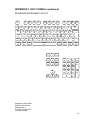
several users. The one setting that can only be changed by means of this screen is that
for the keyboard overlay. The overlay cannot be selected by any LUCY function.
The values shown in the settings screen correspond with the current values in LUCY.
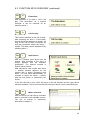
Using the arrow keys 2↑ and 8↓ you can jump to the following or the previous box. After
the last box you reach the switch buttons. The selected button colours red. The button
can be pressed by clicking on it with the mouse or by selecting the space.
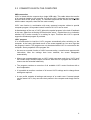
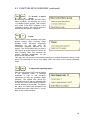
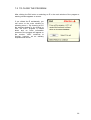
To activate new settings you have to click on the button To LUCY. The program then
asks to confirm the settings by selecting return ↵. This is possible both with LUCY and
with the ordinary keyboard. If you don’t select return ↵ within a certain time, a double
beep will sound, and the current settings will remain unchanged.
NB If you select return ↵ without the programme asking for it, the settings window is
closed and the old settings remain unchanged.
7.4 USER PROFILES
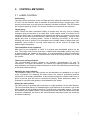
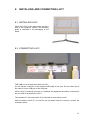
It is possible to store all individual settings including macros and macro groups for each
user in a so-called user profile. With the button Save a profile can be stored on the
hard disk of the computer. With the button Load an earlier stored profile can be chosen
from the list of existing profiles.
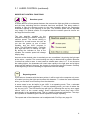
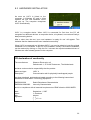
The arrow keys 2↑ and 8↓ can be used to jump between the boxes and to select the
buttons Save or Load.
29