1
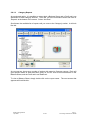
As you can see, this is the place to set up security measures, and alert MYOB to your
various preferences within each of the modules. For now, we will concentrate on the tab
called ‘System’. Read through the window – you will notice that for Category costing to
function, a tick must be placed beside that option. It is also possible to request that
Categories be either required or not required for each transaction entered. Leave this at
‘Not Required’, because there will be transactions entered for which there will not need to
be a category added. Click ‘OK’ when you have finished.
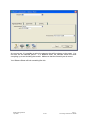
You will be returned to the Command Centre. At this point you will notice no changes –
these will be apparent only when you enter your first purchase, sale, or bank transaction.
For the following example, we will assume that you have received a grant from Community
Sports for $100,000.00 + GST. Community Sports require a full acquittal on this grant, and
so we will set up a category code for it to be assigned to.
2.6.1.2
Creating a Category List
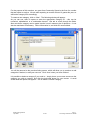
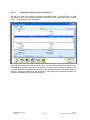
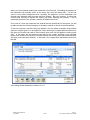
Categories can be added during the course of transaction processing, and this will be
explained shortly – however, if you have an idea of how you want to organise your
category listing, this list can be created in advance.
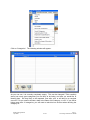
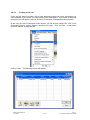
To do this, start at the Command Centre screen. Along the top of the window are the
words ‘File’ ‘Edit’ ‘Lists’ ‘Command Centres’ ‘Setup’ ‘Reports’ ‘Window’ and ‘Help’.
Clicking on each of these will cause a drop down menu to appear. Click on ‘Lists’. The
following menu will appear:
MYOB Training Manual
April 2006
2-133
Part 2:
Processing Transactions in MYOB