1
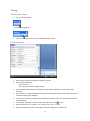
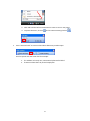
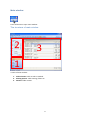
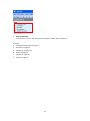
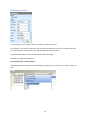
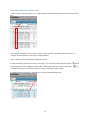
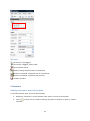
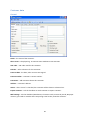
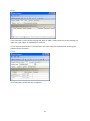
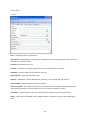
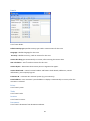
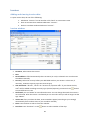
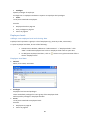
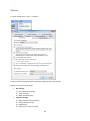
Contract enables you to select or enter the contract number. Data in popup menu comes from customer or case data Issued by: person’s name, whose signature will be used on invoice Division - subdivisions, used to differentiate customers, cases, employees and invoices Invoice settings – “invoice type” defines your invoice as “SIMPLE”, “credit” or “pro forma” Rows 4 types of rows are used on invoice (upper left-corner of the table ”Add row”): 1. “From saved activities” – data from measured or entered activities. 2. “New activity” – open a data entry window. A new row with the new activity will be added on invoice. 3. ”Text row” – simple text and/or manually entered sum. 4. “Extra text under invoice” – add more information. This row is seen in the bottom of invoice, under tax and total sum rows. “Hidden” means that the row is hidden from printout, specification and from sum calculation field: For example: use hidden rows if you have a fixed job payment and you have measured your work in LawTime. This enables you to add billed work on invoice, but the customer sees the sum according to your agreement. Adding billed work to invoice Click ”Add row” button: … and the pop-up menu opens with options: 27