1
ACTIVprimary2 User Guide
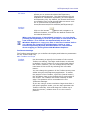
Frame
pages
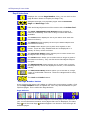
Adds a frame border around your Flipchart page.
Page
numbers
Adds a page number in the bottom left corner of your
Flipchart page.
Page
margin
(mm)
Adds a blank space around the edge of the page.
Paper size
Click on the drop down arrow and select a paper size
from the list.
Range
All /
Current
Page /
Pages
Use these options to specify which Flipchart pages are
printed, you may choose to print all of your Flipchart,
the current page i.e. the one displayed in the
Flipchart or you may specify a range of pages for
example pages 2 to 6.
Copies
Allows you to send multiple copies of your page
selection to the printer.
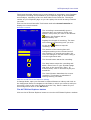
Printing and Print Previewing
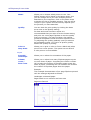
Preview
Allows you to review your Flipchart pages before
printing. The Print Preview window is displayed with a
preview copy of your Flipchart page.
More information about Print Preview
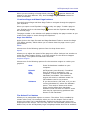
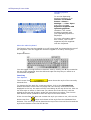
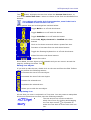
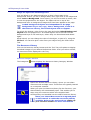
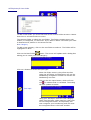
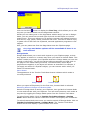
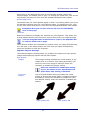
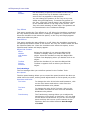
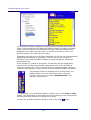
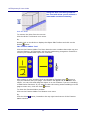
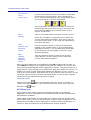
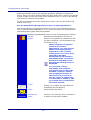
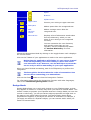
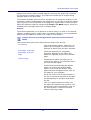
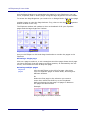
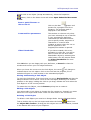
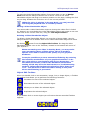
The preview displays the Print Preview Control dialog,
which you can use to navigate through all print pages:
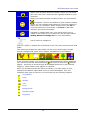
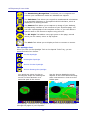
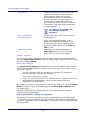
Click on the arrow buttons to browse through the
preview pages. ACTIVprimary will detect how many
pages your flipchart contains so it won't allow you to
create a new page when you reach the end of your
pages, like the Next Page Tool does. The page number
of the current page being previewed is displayed in
between the two arrow buttons.
You cannot edit your flipchart whilst you are reviewing it
in Print Preview mode.
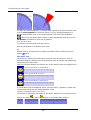
When you have finished reviewing your pages, click on
the Return button to go back to normal flipchart view.
Print
Prints the page(s) according to the options selected.
OK
Accepts the selected options and takes you back to your
Flipchart without printing.
Cancel
Rejects the selected options and goes back to the
default settings. Takes you back to your Flipchart
without printing.
35