1
ACTIVprimary2 User Guide
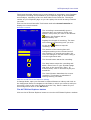
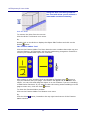
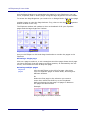
Translucency
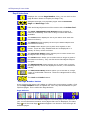
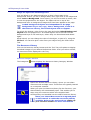
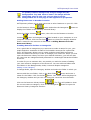
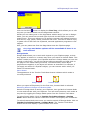
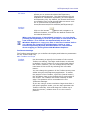
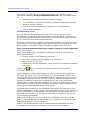
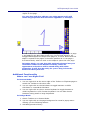
Move the slider to change the translucent property of an
object and make it appear opaque or faded.
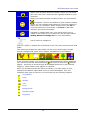
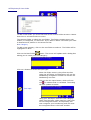
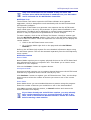
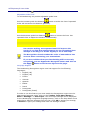
Visible
Select the checkbox to make an object visible (default).
Clear the checkbox to make the object invisible.
Invisible objects on your page will be
displayed when in Design Mode, but not
when you change to Present Mode.
Reflected
Select the checkbox to mirror the selected object
horizontally.
Inverted
Select the checkbox to mirror the selected object
vertically.
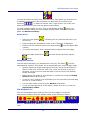
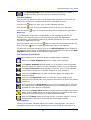
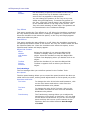
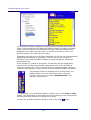
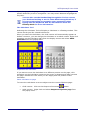
Pen Type
Click on the down arrow and select a different pen type
from the drop down list; pen, highlight or Eraser.
Pen width
and Color
Enter a number to change the pen width (in pixels). The
maximum value you can set is 999.
Setting the pen width to 0 is a special setting
that keeps the width of an annotation at 1
pixel regardless of the zoom level on the
page.
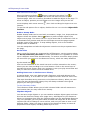
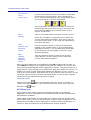
To change the color of the pen, click on the color block and
select a color from the color palette.
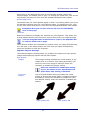
Line style
Click on the drop down arrow to choose between a flat
line, which contains sharp corners, or rounded line, which
contains rounded corners.
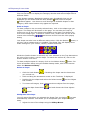
Begin style /
End style
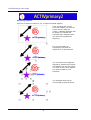
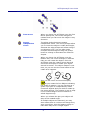
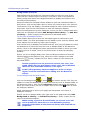
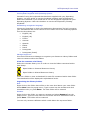
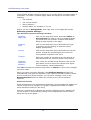
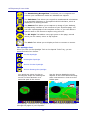
Click on the drop down arrow and choose from the
following options:
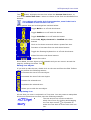
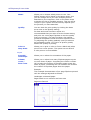
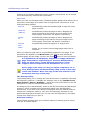
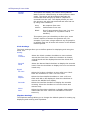
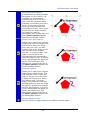
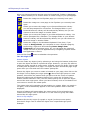
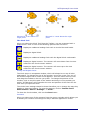
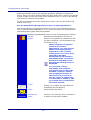
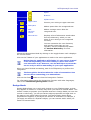
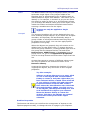
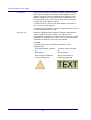
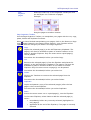
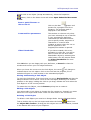
Select Plain to view your line without any
Plain
end shapes.
Outline
Arrow
Select Arrow if you want your line to
contain a pointed arrowhead at one of
both ends.
Bullet
Select Bullet if you want your line to
contain a rounded shape at one of both
ends.
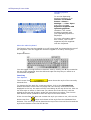
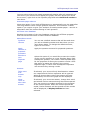
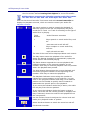
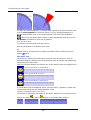
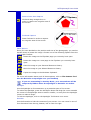
Select the checkbox to apply an outline and change the
outline characteristics.
Enter a number in the Outline width textbox to change the
width (thickness) of the outline (in pixels). The default
outline width is 1 pixel.
Click on the Color button and select a color for the outline
from the color palette. The default color is black.
81