1
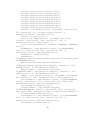
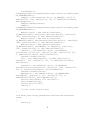
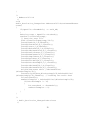
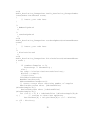
Audio File Resolution
Resizer
Jan Michael Abuzo
Jose Roman D. Arguelles
Francis Ray R. Cruz
Audio File Resolution
Resizer
A Project by
Jan Michael Abuzo
Jose Roman D. Arguelles
Francis Ray R. Cruz
Submitted to
Luisito L. Agustin
Instructor, ELC 152
In Partial Fulfillment of the Requirements for the Course
ELC 152: Signal Processing
Department of Electronics, Computer and Communications Engineering
School of Science and Engineering
Loyola Schools
Ateneo de Manila University
Quezon City, Philippines
October 2010
Abstract
The purpose of this project is to analyze audio audio files. By manipulating and
analyzing the audio digital sample's bit depth it will be possible to gain statistical data
from modifying sample data. The statistical data will provide for a measure of the
converted data in comparison to the original data The data is related to understanding the
properties of compressing data. It will also determine what bit depths are capable of
producing reasonable audio quality.
Table of Contents
1. Introduction ................................................................................................................... 5
1.1. Audio Files ..................................................................................................... 5
1.1.1. RIFF Format ................................................................................................. 5
1.1.1.1. WAV Files .................................................................................................. 5
1.1.1.2. Pulse Code Modulation...............................................................................7
1.2. Data Statistics................................................................................................... 7
1.2.1 Error ............................................................................................................... 8
1.2.2. Averages.........................................................................................................8
2. Project Overview ............................................................................................................ 9
2.1. Objectives ........................................................................................................ 9
2.2. Significance of the Project ............................................................................... 9
2.3. Scope and Limitations ..................................................................................... 9
2.4. Implementation Summary ................................................................................9
3. Discussion of Program …..............................................................................................11
3.1. Declaration and Initialization of Variables...................................................... 11
3.2. File Reading .................................................................................................... 12
3.3. Data Manipulation ........................................................................................... 12
3.3.1. Resizing Algorithm........................................................................................13
3.3.2. Statistical Data Collection..............................................................................13
3.3.2.1. Absolute Error............................................................................................ 13
3.3.2.2. Maximum Absolute Error...........................................................................13
3.3.2.3. Total Absolute Error................................................................................... 14
3.3.2.4. Average Absolute Error...............................................................................14
3.4 File Writing.........................................................................................................14
4. User Interface.................................................................................................................16
Appendix 1. User's Manual................................................................................................19
A1.1. Software Overview..........................................................................................19
A1.1.1 Features..........................................................................................................19
A1.2User's Guide.......................................................................................................19
A1.2.1 Using the Software........................................................................................19
A1.2.2 Loading an Input Audio File.........................................................................19
A1.2.3 Selecting an Output Audio File and Bit Size................................................19
A1.2.4 Statistical Data Display.................................................................................19
A1.2.5 Selecting Specific Samples...........................................................................20
A1.2.6 Exiting the Program.....................................................................................20
Appendix 2. Source Code.... ............................................................................................21
A2.1. Source Files....................................................................................................21
A2.1.1 audio_file_resolution_resizerfrm.h..............................................................21
A2.1.2 audio_file_resolution_resizerapp.h...............................................................25
A2.1.3 audio_file_resolution_resizerfrm.cpp...........................................................26
A2.1.4 audio_file_resolution_resizerapp.cpp...........................................................37
A2.1.5 audio_file_resolution_resizerapp.rc..............................................................38
A2.1.6 audio_file_resolution_resizerapp.cpp............................................................38
Bibliography.......................................................................................................................40
1. Introduction
1.1. Audio Files
It is common knowledge that computers use digital signals to process data. Yet
audio signals are analog in nature. So for a computer to create audio files that can be read
by it the audio signals go through a processing method that represents the analog audio
signal in digital form for the computer to understand.
1.1.1. RIFF Format
The Resource Interchange File Format (RIFF) is a type of multimedia file format
that is commonly used by different multimedia functions. The structure is similar to that
of the Electronic Arts IFF files. For an RIFF file the basic building blocks are called
chunks. In a chunk there are three parts that need to be considered: The first part is the
chunk identification, it is usually a four character code that determines the type of file.
Once the program reads this it will identify the file and begin reading the different types
of chunks that the format needs. The second parts is the chunk size, this part determines
the size of the chunk data. The third part is the chunk data. This part contains binary data
of a fixed or variable size. For the RIFF format there are two other parts of the data
structure that need to be considered. The Header ID and the Data Size, the first one gives
the name of the list while the second one lists the chunks. There are also different types
of RIFF forms that follow an RIFF framework. In the case of the program, the form that
the group shall use will be the Waveform Audio Format.
1.1.1.1. WAV Files
The Waveform Audio File Format is a standard format that is used to store audio
files in a Personal Computer. Generally when an audio file is in the WAVE file format it
is an uncompressed version of the audio sample. As mentioned in the previous section the
WAVE file is a type of RIFF file with a specific type of format. To see the WAVE file
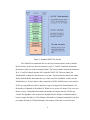
format refer to the diagram below:
5
Figure 1. Standard WAVE File Format
The Chunk ID as mentioned above is the four characters that is used to identify
the file format, in this case the four characters are R, I, F and F. ChunkSize determines
the number of the rest of the remaining chunks. The Format chunk contains the characters
W, A, V and E to identify that the file is indeed a WAVE file. The next chunk, the
Subchunk ID, contains the the characters f, m and t. This describes the data of the sound
format. SubchunkSize determines the size of the rest of the subchunks. In this case the
Subchunksize is 16 since that is what is required for PCM. AudioFormat is set to one for
PCM, by using different values it indicates a type of compression. NumChannels is for
the number of channels of the audio file. When it is set to one it is mono if it is set to two
then it is stereo. SampleRate determines the number of samples the file will take per
second. The ByteRate is the sample rate multiplied by the number of channels and the
bits per sample divided by 8. BlockAlign is the number of channels multiplied by the bits
per sample divided by 8. BitsPerSample is the number of bits that are used for each
6
sample. For this program the number of bits per sample will be 16. Another common
term fot this is the audio bit depth. For the project this is the part that the program will
generally alter. The next part is the Subchunk2ID, this contains the characters d, a, t and
a. For Subchunk2Size it contains the number of bytes there are in the data. Finally the
Data contains the actual audio data. For this program the WAVE files that are being used
will be in PCM format.
1.1.1.2. Pulse Code Modulation
For the program the WAVE files will be using Linear Pulse Code Modulation
(LPCM). This is basically Pulse Code modulation that uses linear quantization to
normalize the modulated signal. Since audio signals are analog, PCM is a valid choice to
represent the audio signal digitally. By sending a serial train of equal sized pulses this
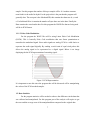
allows the analog signal to be represented as a digital signal. Below is an image
displaying the the PCM representation of an analog signal:
Figure 2. PCM Representation
It is important to note this since the program that will be discussed will be manipulating
the values of the PCM encoded samples.
1.2. Data Statistics
For the program statistics will be needed to observe the differences in the data that
was collected and manipulated. For this program part of the analysis will require to get
the error and the average error of the manipulated data compared to the original data.
7
1.2.1. Error
The error is the difference between the original value and the experimental data in
question. In the case of the program once the samples are manipulated the error between
the original value of the sample and the resized value of the sample will be compared.
1.2.2. Averages
A basic statistical equation is adding all the data values and by diving it by the
sample size to get the average or the mean. By adding all the error values taken and
dividing the total number of error values in the program the average error values
obtained. With the average values it will give a general picture of the amount of error that
can be expected for a certain bit resolution variance.
8
2. Project Overview
2.1. Objectives
The purpose of this project is to create a program that can modify the audio
resolution of a 16 bit PCM WAVE file. The program will reduce the sample data to a
selected number of bits then resize it back to the sample's original audio bit depth.
Afterwards the error for each sample is obtained. The average error and the maximum
error are then obtained from the collected modified samples.
2.2. Significance of the Project
The significance of the project is to help in understanding the the effect of
reducing the bit depth of an audio sample from its original size. From the statistical data
it can be seen by how much an audio sample is affected by the downsizing and then
upsizing of the sample. From this it can be seen if the reduction significantly affected the
audio file. The program is related to compression as well since it concerns reducing the
size of the samples then returning it back to its original bit depth.
2.3. Scope and Limitations
The project will only use 16 bit WAVE PCM audio files as its original data file.
The program will not be able to increase the bit depth higher than the original but it
should be able to reduce it to any number of bits from 1 to 15 bits per sample. The only
parts of the fmt subchunk that may vary is the subchunk size and the number of channels
the rest must remain the same. It is also important to note that the indexing will not
display properly for certain multi channel audio files.
2.4. Implementation Summary
The project will be using devC++ to create a program that will allow WAVE files
of the specific format to be opened and the raw data to be extracted from the file.
Afterwards the program will downsize the sample to the specified number of bits then
upsize it once again to its original size of 16 bits and save a new file with the modified
9
bits. Then the program will proceed to calculating for the statistical data that is needed for
the project.
10
3. Discussion of Program
3.1 Declaration and Initialization of Variables
The first step when the program is run is to initialize the variables it will use.
The variables declared are used to (1) store information on the WAV audio data to be
read, (2) store audio data upon conversion, (3) store statistical data after comparing the
original data and the converted data.
(1) The information to be stored in a WAV audio file to be read are separated
into three variable types, the 1-byte wide character type and the 2-byte wide short type,
and the 4-byte wide integer type. The character type is used to store the information such
as the ChunkID, Format, Subchunk1ID, and Subchunk2ID are declared as a character
array with 4 elements. The short type is used to store 2-byte numerical information such
as AudioFormat, NumChannels, BlockAlign, BitsPerSample, and OriginalData.
OriginalData is declared as a pointer to the data of short type and will later on be
dynamically allocated memory space equal to the number of samples in the data chunk.
Integer type is used for larger sized numerical information such as ChunkSize,
Subchunk1Size, SampleRate, ByteRate, Subchunk2Size.
(2) The variable that will store audio data upon conversion is of a short type
since the values are only 2-bytes wide. The variable ResizedData is declared as a pointer
to a data of short type, and will also be dynamically allocated some memory equal to the
number of samples in the data chunk.
(3) The statistical data are of integer type, float type, and short type. Those that
are integer type are BitSize, MaxAbsoluteError, and AddressMaxAbsoluteError.
AverageAbsoluteError and TotalAbsoluteError are declared as float type since the former
involves division while the latter involves numbers beyond the scope of long integers.
Upon declaring them, MaxAbsoluteError, and TotalAbsoluteError are all initialized to 0.
The variable AbsoluteError, is declared as a pointer to short type data and will also be
dynamically allocated memory equal to the number of samples in the data chunk.
11
3.2 File Rreading
File reading involves a repetitive call to the function fread in order to store all
data of the WAV file to be converted. The process begins first by declaring fhandle as the
stream of audio data by using fopen on the audio file in read-binary mode. Then it
follows a series of fread commands that is ordered accordingly to the RIFF format for
WAV files. After reading Subchunk2Size and BitsPerSample, the storage for the data
OriginalData is then allocated memory of size Subchunk2Size/(BitsPerSample/8) which
is equal to the number of samples in the data chunk. Other arrays such The last fread
command is done for the audio samples and is stored to a memory location pointed by
OriginalData. The file stream is then closed. The following code performs the file reading
process:
FILE *fhandle=fopen(temp,"rb");
fread(ChunkID,1,4,fhandle);
fread(&ChunkSize,4,1,fhandle);
fread(Format,1,4,fhandle);
fread(Subchunk1ID,1,4,fhandle);
fread(&Subchunk1Size,4,1,fhandle);
fread(&AudioFormat,2,1,fhandle);
fread(&NumChannels,2,1,fhandle);
fread(&SampleRate,4,1,fhandle);
fread(&ByteRate,4,1,fhandle);
fread(&BlockAlign,2,1,fhandle);
fread(&BitsPerSample,2,1,fhandle);
fread(&Subchunk2ID,1,4,fhandle);
fread(&Subchunk2Size,4,1,fhandle);
OriginalData=new
short
[Subchunk2Size/
(BitsPerSample/8)];
fread(OriginalData,BitsPerSample/8,Subchunk2Size/
(BitsPerSample/8),fhandle); // Reading raw audio data
fclose(fhandle);
3.3 Data Manipulation
Data manipulations are performed on the audio data itself using resizing, as well
as statistical data involving the results.
12
3.3.1 Resizing Algorithm
Depth conversion is done by decreasing the 16-bit resolution of the sample into
a lesser x-sized bit resolution determined by the user, and is then used to reproduce a 16bit long sample. The resizing is done by dividing the sample by 2x to get the lesser depth
sample and then multiplied again by 2x to recover a 16-bit long sample. The procedure is
the same as using the bit operator >> and << which effectively shifts the bits to the right
and left accordingly at a given amount producing division and multiplications by powers
of two.
The errors that are obtained would come from the bits that are truncated, and they
are the 16-x bits starting from the least significant bit.
The following code performs the resizing:
for (int b = 0; b < Subchunk2Size /(BitsPerSample/8);b++)
{ResizedData[b] = OriginalData[b]>> (16 - BitSize) <<
(16 – B
itSize);
}
3.3.2 Statistical Data Collection
3.3.2.1 Absolute Error
Absolute error is obtained by subtracting the OriginalData[b] by ResizedData[b]
for all samples in the audio file. The following code provides for the the absolute error:
for (int b = 0; b < Subchunk2Size /(BitsPerSample/8);b++) {
AbsoluteError[b] = OriginalData[b] – ResizedData[b];
...}
3.3.2.2 Maximum Absolute Error
As the absolute error is being calculated, the maximum absolute error is checked
by setting the variable MaxAbsoluteError equal to AbsoluteError[b] whenever
AbsoluteError[b] is greater than MaxAbsoluteError. The following code provides for the
maximum absolute error:
if ( AbsoluteError[b] > MaxAbsoluteError){
13
MaxAbsoluteError = AbsoluteError[b];
AddressMaxAbsoluteError = b;
}
The address of the specific sample is also appended to find which sample gives
the maximum absolute error.
3.3.2.3 Total Absolute Error
The total absolute error is obtained by summing each errors unto each other as the
program solves for each error. The following code provides for the maximum absolute
error:
TotalAbsoluteError
=
TotalAbsoluteError
+
AbsoluteError[b];
3.3.2.4 Average Absolute Error
The average absolute error is obtained can be obtained after all absolute errors are
sovled by dividing the total absolute error by the number of samples which is given by
(Subchunk2Size/(BitsPerSample/8)).
The following code provides for the average
absolute error:
AverageAbsoluteError = TotalAbsoluteError/ (Subchunk2Size/
(BitsPerSample/8))
3.4 File writing
After all data processes have been done, the program is now ready to write the converted
data sotred in ResizedData into another WAV audio file. fhandle is again set as the output
stream to be written in binary mode on a file specificied by the user. After, the fwrite
command is done in the same way the fread was done in order to create a replica of the
header of the original audio WAV file. ResizedData is the only new data introduced into
the file, which contains the converted values of OriginalData.
fhandle=fopen(temp2,"wb");
fwrite(ChunkID,1,4,fhandle);
14
fwrite(&ChunkSize,4,1,fhandle);
fwrite(Format,1,4,fhandle);
fwrite(Subchunk1ID,1,4,fhandle);
fwrite(&Subchunk1Size,4,1,fhandle);
fwrite(&AudioFormat,2,1,fhandle);
fwrite(&NumChannels,2,1,fhandle);
fwrite(&SampleRate,4,1,fhandle);
fwrite(&ByteRate,4,1,fhandle);
fwrite(&BlockAlign,2,1,fhandle);
fwrite(&BitsPerSample,2,1,fhandle);
fwrite(&Subchunk2ID,1,4,fhandle);
fwrite(&Subchunk2Size,4,1,fhandle);
fwrite(ResizedData,BitsPerSample/8,Subchunk2Size/
(BitsPerSample/8),fhandle);
fclose(fhandle);
}
15
4.User Interface
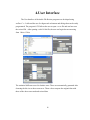
The User Interface of the Audio File Resizer program was developed using
wxDev-C++. It allowed the use of widgets such as buttons and dialogs that can be easily
programmed. The program’s GUI allows the user to open a .wav file and can later save
the resized file. After opening a valid 16 bit file, the user can begin down-converting
from 1 bit to 15 bits.
The statistical differences used is absolute error. These are automatically generated after
choosing the bit size to down-convert to. These values compare the original data with
those of the down-converted and resized data.
16
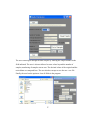
The user can navigate through the data samples by entering the sample number in the
field indicated. The user is also not allowed to enter values beyond the number of
samples, numbering of samples start at zero. The decimal values of the original and the
resized data are compared here. The user also has can opt to save the new .wav file.
Finally, the user has the option to clear all fields in the program.
17
This program makes use of 8 files for its source codes: audio_file_resolution_resizer.dev,
audio_file_resolution_resizer.layout, audio_file_resolution_resizerfrm.cpp,
audio_file_resolution_resizerFrm.cpp, audio_file_resolution_resizerfrm.h,
audio_file_resolution_resizerFrm.wxform, audio_file_resolution_resizerapp.cpp,
audio_file_resolution_resizerapp.h, audio_file_resolution_resizerapp.rc. When starting
the code, these files are automatically generated; and in this program’s case, the
audio_file_resolution_resizerfrm.cpp and audio_file_resolution_resizerfrm.wxform files
were the only ones edited. Adding objects to the frame were done in the
audio_file_resolution_resizerfrm.wxform file, while the functions for these objects as
well as algorithms and such that needed to be coded were defined in the
audio_file_resolution_resizerfrm.cpp file. The audio_file_resolution_resizerapp.cpp
simply calls for the frame and allows the program to be shown on your window.
audio_file_resolution_resizerFrm.h is where the functions you have defined are declared
automatically once you’ve used them in the audio_file_resolution_resizerFrm.cpp file.
The audio_file_resolution_resizerapp.h declares the the class to be implemented by
audio_file_resolution_resizerapp.cpp, in this case the class is
audio_resolution_changerfrmapp. The audio_file_resolution_resizerapp.rc was autogenerated and didn’t contain anything as we didn’t import any files for the code.
18
Appendix 1
User's Manual
A1.1. Software Overview
A1.1.1 Features
•
Load, save WAV files;
•
Selectable bit-resolution size (1-15);
•
Display data statistics;
•
Display and compare samples;
A1.2User's Guide
A1.2.1 Using the Software
Run Audio Resolution Changer.exe located at the software folder of the CD.
A1.2.2 Loading an Input Audio File
The input file to be resized can be selected by clicking the “Open” button on the
Graphical User Interface. A file browser will appear and you will be allowed to select the
chosen WAV file to be converted. Only files with .wav extensions are selectable. After
selecting the desired WAV file, click “Open” on the browser to select the file. The
directory of the chosen file will now show on the GUI.
A1.2.3 Selecting a Bit Size
The GUI will then ask for a bit size for the conversion. Any number between 115 is valid. The directory of the output file will now be displayed on the GUI.
A1.2.4 Statistical Data Display
The program will automatically display on the GUI the statistical data of the
converted data after providing the bit size. Changing the bit size will refresh the values
for the statistical data.
19
A1.2.5 Selecting Specific Samples
The user is free to select and display the values of the samples both of the original
and resized by providing a sample # on the space beside it and clicking on “Go to
Sample”. This will show both decimal values for the original and resized samples. The
user is also able to browse adjacent samples by clicking next or back to see their values.
The samples are refreshed only through the “Go to Sample” button.
A1.2.6 Clearing the Data
All data, the file being converted and statistical data, can be cleared by clicking the
“Clear Field” button.
A1.2.7 Saving the Converted Audio File
The output audio file or its destination can be selected by clickng “Save” on the GUI. A
file browser will appear and the user can select wav files to overwrite them, or create a
new wav file by typing a name on the File Name tab.
A1.2.8 Exiting the Program
The program can be closed by clicking the “X” button at the upper right hand
corner of the GUI.
20
Appendix 2
Source Code
A2. Source Code
A2.1. Source Files
A2.1.1 audio_file_resolution_resizerfrm.h
///---------------------------------------------------------------///
/// @file
Audio Resolution ChangerFrm.h
/// @author
Jan Michael Abuzo, Jose Arguelles, Francis
Cruz
/// Created:
1/1/2002 10:40:22 AM
/// @section
DESCRIPTION
///
Audio_Resolution_ChangerFrm class declaration
///
///----------------------------------------------------------------#ifndef __Audio_Resolution_ChangerFrmFRM_H__
#define __Audio_Resolution_ChangerFrmFRM_H__
#ifdef __BORLANDC__
#pragma hdrstop
#endif
#ifndef WX_PRECOMP
#include <wx/wx.h>
#include <wx/frame.h>
#else
#include <wx/wxprec.h>
#endif
//Do not add custom headers between
//Header Include Start and Header Include End.
//wxDev-C++ designer will remove them. Add custom headers
after the block.
////Header Include Start
#include <wx/msgdlg.h>
21
#include <wx/filedlg.h>
#include <wx/choice.h>
#include <wx/stattext.h>
#include <wx/textctrl.h>
#include <wx/button.h>
////Header Include End
////Dialog Style Start
#undef Audio_Resolution_ChangerFrm_STYLE
#define Audio_Resolution_ChangerFrm_STYLE wxCAPTION |
wxSYSTEM_MENU | wxMINIMIZE_BOX | wxMAXIMIZE_BOX |
wxCLOSE_BOX
////Dialog Style End
class Audio_Resolution_ChangerFrm : public wxFrame
{
private:
DECLARE_EVENT_TABLE();
public:
Audio_Resolution_ChangerFrm(wxWindow *parent,
wxWindowID id = 1, const wxString &title = wxT("Audio
Resolution Changer"), const wxPoint& pos =
wxDefaultPosition, const wxSize& size = wxDefaultSize, long
style = Audio_Resolution_ChangerFrm_STYLE);
virtual ~Audio_Resolution_ChangerFrm();
void WxButton1Click(wxCommandEvent& event);
void
Audio_Resolution_ChangerFrmActivate(wxActivateEvent& event);
void WxMemo1Updated(wxCommandEvent& event);
void textboxUpdated(wxCommandEvent& event);
void WxButton1Click0(wxCommandEvent& event);
void SaveClick(wxCommandEvent& event);
void StartClick(wxCommandEvent& event);
void WxEdit1Updated(wxCommandEvent& event);
void
Audio_Resolution_ChangerFrm::WxgotosampleClick(wxCommandEve
nt& event);
void
Audio_Resolution_ChangerFrm::WxclearClick(wxCommandEvent&
event);
void samplenumberUpdated(wxCommandEvent& event);
void WxButton1Click1(wxCommandEvent& event);
void bitsizeSelected(wxCommandEvent& event );
void WxComboBox1Selected(wxCommandEvent& event );
22
void samplenumSelected(wxCommandEvent& event );
void
Audio_Resolution_ChangerFrm::WxBackClick(wxCommandEvent&
event);
void
Audio_Resolution_ChangerFrm::WxNextClick(wxCommandEvent&
event);
void binaryClick(wxCommandEvent& event);
void decimalClick(wxCommandEvent& event);
private:
//Do not add custom control declarations between
//GUI Control Declaration Start and GUI Control
Declaration End.
//wxDev-C++ will remove them. Add custom code
after the block.
////GUI Control Declaration Start
wxMessageDialog *sampleerror;
wxFileDialog *OpenFile;
wxMessageDialog *bitratecheck;
wxMessageDialog *bitmessage;
wxFileDialog *SaveFile;
wxStaticText *WxStaticText6;
wxTextCtrl *AddMaxAbsError;
wxTextCtrl *MaxAbsError;
wxStaticText *WxStaticText5;
wxButton *Next;
wxButton *back;
wxButton *gotosample;
wxTextCtrl *samplenum;
wxStaticText *WxStaticText4;
wxChoice *bitsize;
wxButton *clear;
wxTextCtrl *AveAbsError;
wxStaticText *WxStaticText8;
wxStaticText *WxStaticText7;
wxStaticText *Sample;
wxTextCtrl *resizedsample;
wxTextCtrl *originalsample;
wxTextCtrl *TotalAbsError;
wxTextCtrl *Samples;
wxStaticText *WxStaticText3;
wxStaticText *WxStaticText2;
wxStaticText *WxStaticText1;
wxTextCtrl *textbox1;
23
wxButton *Save;
wxTextCtrl *textbox2;
wxButton *OpenButton;
////GUI Control Declaration End
private:
//Note: if you receive any error with these enum
IDs, then you need to
//change your old form code that are based on the
#define control IDs.
//#defines may replace a numeric value for the
enum names.
//Try copy and pasting the below block in your old
form header files.
enum
{
////GUI Enum Control ID Start
ID_WXSTATICTEXT6 = 53,
ID_ADDMAXABSERROR = 52,
ID_MAXABSERROR = 51,
ID_WXSTATICTEXT5 = 50,
ID_NEXT = 49,
ID_BACK = 48,
ID_GOTOSAMPLE = 47,
ID_SAMPNUM = 46,
ID_WXSTATICTEXT4 = 40,
ID_BITSIZE = 38,
ID_CLEAR = 37,
ID_AVEABSERROR = 31,
ID_WXSTATICTEXT8 = 29,
ID_WXSTATICTEXT7 = 28,
ID_SAMPLE = 27,
ID_RESIZEDSAMPLE = 24,
ID_ORIGINALSAMPLE = 23,
ID_TOTALABSERROR = 19,
ID_SAMPLES = 17,
ID_WXSTATICTEXT3 = 12,
ID_WXSTATICTEXT2 = 10,
ID_WXSTATICTEXT1 = 9,
ID_TEXTBOX1 = 8,
ID_SAVE = 7,
ID_TEXTBOX2 = 4,
ID_OPENBUTTON = 1,
////GUI Enum Control ID End
ID_DUMMY_VALUE_ //don't remove this value
24
unless you have other enum values
};
private:
void OnClose(wxCloseEvent& event);
void CreateGUIControls();
};
#endif
A2.1.2 audio_file_resolution_resizerapp.h
//-------------------------------------------------------------------------//
// Name:
Audio Resolution ChangerApp.h
// Author:
Jan Michael Abuzo, Jose Arguelles, Francis
Cruz
// Created:
1/1/2002 10:40:22 AM
// Description:
//
//-------------------------------------------------------------------------#ifndef __AUDIO_RESOLUTION_CHANGERFRMApp_h__
#define __AUDIO_RESOLUTION_CHANGERFRMApp_h__
#ifdef __BORLANDC__
#pragma hdrstop
#endif
#ifndef WX_PRECOMP
#include <wx/wx.h>
#else
#include <wx/wxprec.h>
#endif
class audio_resolution_changerfrmapp : public wxApp
{
public:
bool OnInit();
int OnExit();
};
#endif
25
A2.1.3 audio_file_resolution_resizerfrm.cpp
///---------------------------------------------------------------///
/// @file
Audio_Resolution_ChangerFrm.cpp
/// @author
Jan Michael Abuzo, Jose Arguelles, Francis
Cruz
/// Created:
1/1/2002 10:40:22 AM
/// @section
DESCRIPTION
///
Audio_Resolution_ChangerFrmFrm class
implementation
///
///----------------------------------------------------------------#include
#include
#include
#include
#include
#include
#include
#include
"audio_file_resolution_resizerfrm.h"
<wx/filename.h>
<stdio.h>
<stdlib.h>
<iostream>
<math.h>
<string>
<sstream>
using namespace std;
// Buffers etc..
char ChunkID[4], Format[4],
Subchunk1ID[4],Subchunk2ID[4];
int ChunkSize, Subchunk1Size, SampleRate,
ByteRate,Subchunk2Size;
short AudioFormat, NumChannels, BlockAlign,
BitsPerSample;
short *AbsoluteError;
float AverageAbsoluteError;
float TotalAbsoluteError;
int BitSize;
int AddressMaxAbsoluteError;
int MaxAbsoluteError;
short *OriginalData;
short *ResizedData;
int numberofsamples, sampnum;
//Do not add custom headers between
//Header Include Start and Header Include End
//wxDev-C++ designer will remove them
26
////Header Include Start
////Header Include End
//--------------------------------------------------------------------------// Audio_Resolution_ChangerFrm
//--------------------------------------------------------------------------//Add Custom Events only in the appropriate block.
//Code added in other places will be removed by wxDev-C++
////Event Table Start
BEGIN_EVENT_TABLE(Audio_Resolution_ChangerFrm,wxFrame)
////Manual Code Start
////Manual Code End
EVT_CLOSE(Audio_Resolution_ChangerFrm::OnClose)
EVT_ACTIVATE(Audio_Resolution_ChangerFrm::Audio_Resolution_
ChangerFrmActivate)
EVT_TEXT(ID_ADDMAXABSERROR,Audio_Resolution_ChangerFrm::WxE
dit1Updated)
EVT_TEXT(ID_MAXABSERROR,Audio_Resolution_ChangerFrm::WxEdit
1Updated)
EVT_BUTTON(ID_NEXT,Audio_Resolution_ChangerFrm::WxNextClick)
EVT_BUTTON(ID_BACK,Audio_Resolution_ChangerFrm::WxBackClick)
EVT_BUTTON(ID_GOTOSAMPLE,Audio_Resolution_ChangerFrm::Wxgot
osampleClick)
EVT_CHOICE(ID_BITSIZE,Audio_Resolution_ChangerFrm::bitsizeS
elected)
EVT_BUTTON(ID_CLEAR,Audio_Resolution_ChangerFrm::WxclearCli
ck)
EVT_TEXT(ID_AVEABSERROR,Audio_Resolution_ChangerFrm::WxEdit
1Updated)
EVT_TEXT(ID_TOTALABSERROR,Audio_Resolution_ChangerFrm::WxEd
it1Updated)
EVT_TEXT(ID_SAMPLES,Audio_Resolution_ChangerFrm::WxEdit1Upd
27
ated)
EVT_BUTTON(ID_SAVE,Audio_Resolution_ChangerFrm::WxButton1Cl
ick0)
EVT_TEXT(ID_TEXTBOX2,Audio_Resolution_ChangerFrm::textboxUp
dated)
EVT_BUTTON(ID_OPENBUTTON,Audio_Resolution_ChangerFrm::WxBut
ton1Click)
END_EVENT_TABLE()
////Event Table End
Audio_Resolution_ChangerFrm::Audio_Resolution_ChangerFrm(wx
Window *parent, wxWindowID id, const wxString &title, const
wxPoint &position, const wxSize& size, long style)
: wxFrame(parent, id, title, position, size, style)
{
CreateGUIControls();
}
Audio_Resolution_ChangerFrm::~Audio_Resolution_ChangerFrm()
{
}
void Audio_Resolution_ChangerFrm::CreateGUIControls()
{
//Do not add custom code between
//GUI Items Creation Start and GUI Items Creation End
//wxDev-C++ designer will remove them.
//Add the custom code before or after the blocks
////GUI Items Creation Start
sampleerror = new wxMessageDialog(this, wxT("Sample
number invalid, check number of samples above. Sample
number starts at 0."), wxT("Error"));
OpenFile = new wxFileDialog(this, wxT("Choose a .wav
file"), wxT(""), wxT(""), wxT("*.wav"), wxOPEN);
bitratecheck = new wxMessageDialog(this, wxT("Sampling
rate should be 16 bits, choose a different file."),
wxT("Error"));
bitmessage = new wxMessageDialog(this, wxT("Open a
valid 16 bit file first."), wxT("Error"));
SaveFile = new wxFileDialog(this, wxT("Choose a
file"), wxT(""), wxT(""), wxT("*.wav"), wxSAVE);
WxStaticText6 = new wxStaticText(this,
ID_WXSTATICTEXT6, wxT("At sample"), wxPoint(255, 203),
wxDefaultSize, 0, wxT("WxStaticText6"));
28
AddMaxAbsError = new wxTextCtrl(this,
ID_ADDMAXABSERROR, wxT(" "), wxPoint(310, 203), wxSize(37,
18), 0, wxDefaultValidator, wxT("AddMaxAbsError"));
AddMaxAbsError->Enable(false);
AddMaxAbsError>SetBackgroundColour(wxSystemSettings::GetColour(wxSYS_COLO
UR_APPWORKSPACE));
MaxAbsError = new wxTextCtrl(this, ID_MAXABSERROR,
wxT(" "), wxPoint(129, 203), wxSize(114, 18), 0,
wxDefaultValidator, wxT("MaxAbsError"));
MaxAbsError->Enable(false);
MaxAbsError>SetBackgroundColour(wxSystemSettings::GetColour(wxSYS_COLO
UR_APPWORKSPACE));
WxStaticText5 = new wxStaticText(this,
ID_WXSTATICTEXT5, wxT("Max Absolute Error"), wxPoint(2,
203), wxDefaultSize, 0, wxT("WxStaticText5"));
Next = new wxButton(this, ID_NEXT, wxT("Next"),
wxPoint(246, 274), wxSize(47, 23), 0, wxDefaultValidator,
wxT("Next"));
Next->SetFont(wxFont(12, wxSWISS, wxNORMAL, wxNORMAL,
false));
back = new wxButton(this, ID_BACK, wxT("Back"),
wxPoint(187, 274), wxSize(47, 23), 0, wxDefaultValidator,
wxT("back"));
back->SetFont(wxFont(12, wxSWISS, wxNORMAL, wxNORMAL,
false));
gotosample = new wxButton(this, ID_GOTOSAMPLE, wxT("Go
to Sample"), wxPoint(187, 231), wxSize(107, 39), 0,
wxDefaultValidator, wxT("gotosample"));
gotosample->SetFont(wxFont(12, wxSWISS, wxNORMAL,
wxNORMAL, false));
samplenum = new wxTextCtrl(this, ID_SAMPNUM, wxT(""),
wxPoint(83, 230), wxSize(101, 19), wxTE_RIGHT,
wxDefaultValidator, wxT("samplenum"));
WxStaticText4 = new wxStaticText(this,
ID_WXSTATICTEXT4, wxT("Bit Size to Convert to"), wxPoint(1,
89), wxDefaultSize, 0, wxT("WxStaticText4"));
wxArrayString arrayStringFor_bitsize;
arrayStringFor_bitsize.Add(wxT("1"));
arrayStringFor_bitsize.Add(wxT("2"));
arrayStringFor_bitsize.Add(wxT("3"));
arrayStringFor_bitsize.Add(wxT("4"));
arrayStringFor_bitsize.Add(wxT("5"));
arrayStringFor_bitsize.Add(wxT("6"));
29
arrayStringFor_bitsize.Add(wxT("7"));
arrayStringFor_bitsize.Add(wxT("8"));
arrayStringFor_bitsize.Add(wxT("9"));
arrayStringFor_bitsize.Add(wxT("10"));
arrayStringFor_bitsize.Add(wxT("11"));
arrayStringFor_bitsize.Add(wxT("12"));
arrayStringFor_bitsize.Add(wxT("13"));
arrayStringFor_bitsize.Add(wxT("14"));
arrayStringFor_bitsize.Add(wxT("15"));
bitsize = new wxChoice(this, ID_BITSIZE, wxPoint(110,
87), wxSize(64, 21), arrayStringFor_bitsize, 0,
wxDefaultValidator, wxT("bitsize"));
bitsize->SetSelection(-1);
clear = new wxButton(this, ID_CLEAR, wxT("Clear
Fields"), wxPoint(253, 134), wxSize(107, 39), 0,
wxDefaultValidator, wxT("clear"));
clear->SetFont(wxFont(12, wxSWISS, wxNORMAL, wxNORMAL,
false));
AveAbsError = new wxTextCtrl(this, ID_AVEABSERROR,
wxT(" "), wxPoint(129, 158), wxSize(114, 18), 0,
wxDefaultValidator, wxT("AveAbsError"));
AveAbsError->Enable(false);
AveAbsError>SetBackgroundColour(wxSystemSettings::GetColour(wxSYS_COLO
UR_APPWORKSPACE));
WxStaticText8 = new wxStaticText(this,
ID_WXSTATICTEXT8, wxT("Resized Sample"), wxPoint(1, 279),
wxDefaultSize, 0, wxT("WxStaticText8"));
WxStaticText7 = new wxStaticText(this,
ID_WXSTATICTEXT7, wxT("Original Sample"), wxPoint(1, 257),
wxDefaultSize, 0, wxT("WxStaticText7"));
Sample = new wxStaticText(this, ID_SAMPLE, wxT("Sample
#"), wxPoint(1, 235), wxDefaultSize, 0, wxT("Sample"));
resizedsample = new wxTextCtrl(this, ID_RESIZEDSAMPLE,
wxT(""), wxPoint(83, 277), wxSize(101, 19), wxTE_RIGHT,
wxDefaultValidator, wxT("resizedsample"));
resizedsample->Enable(false);
originalsample = new wxTextCtrl(this,
ID_ORIGINALSAMPLE, wxT(""), wxPoint(83, 255), wxSize(101,
19), wxTE_RIGHT, wxDefaultValidator, wxT("originalsample"));
originalsample->Enable(false);
TotalAbsError = new wxTextCtrl(this, ID_TOTALABSERROR,
wxT(" "), wxPoint(129, 181), wxSize(114, 18), 0,
wxDefaultValidator, wxT("TotalAbsError"));
TotalAbsError->Enable(false);
30
TotalAbsError>SetBackgroundColour(wxSystemSettings::GetColour(wxSYS_COLO
UR_APPWORKSPACE));
Samples = new wxTextCtrl(this, ID_SAMPLES, wxT(" "),
wxPoint(129, 134), wxSize(114, 18), 0, wxDefaultValidator,
wxT("Samples"));
Samples->Enable(false);
Samples>SetBackgroundColour(wxSystemSettings::GetColour(wxSYS_COLO
UR_APPWORKSPACE));
WxStaticText3 = new wxStaticText(this,
ID_WXSTATICTEXT3, wxT("Total Absolute Error"), wxPoint(2,
183), wxDefaultSize, 0, wxT("WxStaticText3"));
WxStaticText2 = new wxStaticText(this,
ID_WXSTATICTEXT2, wxT("Average Absolute Error"), wxPoint(2,
160), wxDefaultSize, 0, wxT("WxStaticText2"));
WxStaticText1 = new wxStaticText(this,
ID_WXSTATICTEXT1, wxT("Number of Samples"), wxPoint(2,
136), wxDefaultSize, 0, wxT("WxStaticText1"));
textbox1 = new wxTextCtrl(this, ID_TEXTBOX1,
wxT("Source Directory"), wxPoint(0, 48), wxSize(316, 21),
0, wxDefaultValidator, wxT("textbox1"));
textbox1->Enable(false);
Save = new wxButton(this, ID_SAVE, wxT("Save"),
wxPoint(1, 303), wxSize(75, 25), 0, wxDefaultValidator,
wxT("Save"));
textbox2 = new wxTextCtrl(this, ID_TEXTBOX2,
wxT("Destination Directory"), wxPoint(1, 328), wxSize(313,
22), 0, wxDefaultValidator, wxT("textbox2"));
textbox2->Enable(false);
OpenButton = new wxButton(this, ID_OPENBUTTON,
wxT("Open"), wxPoint(-1, 23), wxSize(75, 25), 0,
wxDefaultValidator, wxT("OpenButton"));
SetTitle(wxT("Audio File Resizer"));
SetIcon(wxNullIcon);
SetSize(8,8,372,387);
Center();
////GUI Items Creation End
}
void Audio_Resolution_ChangerFrm::OnClose(wxCloseEvent&
event)
{
Destroy();
31
}
/*
* WxButton1Click
*/
void
Audio_Resolution_ChangerFrm::WxButton1Click(wxCommandEvent&
event)
{
if(OpenFile->ShowModal() == wxID_OK)
{
wxString temp = OpenFile->GetPath();
textbox1->SetValue(temp);
// Read the wave file
FILE *fhandle=fopen(temp,"rb");
fread(ChunkID,1,4,fhandle);
fread(&ChunkSize,4,1,fhandle);
fread(Format,1,4,fhandle);
fread(Subchunk1ID,1,4,fhandle);
fread(&Subchunk1Size,4,1,fhandle);
fread(&AudioFormat,2,1,fhandle);
fread(&NumChannels,2,1,fhandle);
fread(&SampleRate,4,1,fhandle);
fread(&ByteRate,4,1,fhandle);
fread(&BlockAlign,2,1,fhandle);
fread(&BitsPerSample,2,1,fhandle);
fread(&Subchunk2ID,1,4,fhandle);
fread(&Subchunk2Size,4,1,fhandle);
OriginalData=new short [Subchunk2Size/
(BitsPerSample/8)];
fread(OriginalData,BitsPerSample/8,Subchunk2Size/
(BitsPerSample/8),fhandle); // Reading raw audio data
fclose(fhandle);
numberofsamples = Subchunk2Size/(BitsPerSample/8);
if(BitsPerSample != 16)
{
bitratecheck -> ShowModal();
numberofsamples = 0;
}
}
}
/*
* Audio_Resolution_ChangerFrmActivate
*/
32
void
Audio_Resolution_ChangerFrm::Audio_Resolution_ChangerFrmAct
ivate(wxActivateEvent& event)
{
// insert your code here
}
/*
* WxMemo1Updated
*/
/*
* textboxUpdated
*/
void
Audio_Resolution_ChangerFrm::textboxUpdated(wxCommandEvent&
event)
{
// insert your code here
}
/*
* bitsizeSelected
*/
void
Audio_Resolution_ChangerFrm::bitsizeSelected(wxCommandEvent
& event )
{
if (numberofsamples == 0)
bitmessage -> ShowModal();
else {
int temp = bitsize->GetCurrentSelection();
BitSize = temp+1;
//initialize
TotalAbsoluteError=0;
MaxAbsoluteError=0;
AddressMaxAbsoluteError=0;
// create arrays after obtaining number of samples
AbsoluteError=new short [Subchunk2Size/
(BitsPerSample/8)];
ResizedData=new short [Subchunk2Size/
(BitsPerSample/8)];
for (int b = 0; b < Subchunk2Size /(BitsPerSample/8);b+
+) {
// routine to down then upconvert
ResizedData[b] = OriginalData[b]>> (16 - BitSize)
<< (16 - BitSize);
}
33
for (int b = 0; b < Subchunk2Size /(BitsPerSample/8);b+
// Routine for absolute errors
AbsoluteError[b] = OriginalData[b] ResizedData[b];
// gets the absolute error
TotalAbsoluteError = TotalAbsoluteError +
AbsoluteError[b];
// gets the total absolute error
if ( AbsoluteError[b] > MaxAbsoluteError){
// finds the maximum absolute error
MaxAbsoluteError = AbsoluteError[b];
AddressMaxAbsoluteError = b;
}
}
float a =8.0;
AverageAbsoluteError = TotalAbsoluteError/
(Subchunk2Size/(BitsPerSample/ a));
//get average error
//display data
char buffer [16];
char buffer1 [16];
char buffer2 [16];
char buffer3 [16];
char buffer4 [16];
itoa(numberofsamples, buffer,10);
Samples -> SetValue(buffer);
snprintf(buffer1, 16, "%f", AverageAbsoluteError);
AveAbsError -> SetValue(buffer1);
snprintf(buffer2, 16, "%f", TotalAbsoluteError);
TotalAbsError -> SetValue(buffer2);
itoa(MaxAbsoluteError, buffer3, 10);
itoa(AddressMaxAbsoluteError, buffer4, 10);
MaxAbsError -> SetValue(buffer3);
AddMaxAbsError -> SetValue(buffer4);
}
}
/*
* WxButton1Click0
*/
void
Audio_Resolution_ChangerFrm::WxButton1Click0(wxCommandEvent
& event)
{
if(SaveFile->ShowModal() == wxID_OK)
{
wxString temp2 = SaveFile->GetPath();
textbox2->SetValue(temp2);
wxString temp =textbox1->GetValue();
+) {
34
// Write the same file
FILE *fhandle=fopen(temp2,"wb");
fwrite(ChunkID,1,4,fhandle);
fwrite(&ChunkSize,4,1,fhandle);
fwrite(Format,1,4,fhandle);
fwrite(Subchunk1ID,1,4,fhandle);
fwrite(&Subchunk1Size,4,1,fhandle);
fwrite(&AudioFormat,2,1,fhandle);
fwrite(&NumChannels,2,1,fhandle);
fwrite(&SampleRate,4,1,fhandle);
fwrite(&ByteRate,4,1,fhandle);
fwrite(&BlockAlign,2,1,fhandle);
fwrite(&BitsPerSample,2,1,fhandle);
fwrite(&Subchunk2ID,1,4,fhandle);
fwrite(&Subchunk2Size,4,1,fhandle);
fwrite(ResizedData,BitsPerSample/8,Subchunk2Size/
(BitsPerSample/8),fhandle);
fclose(fhandle);
}
}
void
Audio_Resolution_ChangerFrm::WxclearClick(wxCommandEvent&
event)
{
samplenum->SetValue(" ");
originalsample->SetValue(" ");
resizedsample->SetValue(" ");
Samples -> SetValue(" ");
AveAbsError -> SetValue(" ");
TotalAbsError -> SetValue(" ");
AddMaxAbsError -> SetValue(" ");
MaxAbsError -> SetValue(" ");
bitsize -> SetSelection(-1);
textbox1 ->SetValue(" ");
}
void
Audio_Resolution_ChangerFrm::WxEdit1Updated(wxCommandEvent
& event)
{
}
/*
* samplenumberUpdated
*/
35
/*
* gotosample Clicked
*/
void
Audio_Resolution_ChangerFrm::WxgotosampleClick(wxCommandEve
nt& event)
{
wxString temp4 = samplenum->GetValue();
sampnum = atoi(temp4.c_str());
if (sampnum > numberofsamples-1 || sampnum < 0)
{
sampleerror -> ShowModal();
}
else
{
char buffer7 [17];
char buffer8 [17];
short temp1 = OriginalData[sampnum];
short temp2 = ResizedData[sampnum];
itoa(temp1, buffer7,10);
originalsample->SetValue(buffer7);
itoa(temp2,buffer8,10);
resizedsample->SetValue(buffer8);
}
}
void
Audio_Resolution_ChangerFrm::WxBackClick(wxCommandEvent&
event)
{
char buffer10 [20];
wxString temp4 = samplenum->GetValue();
int sampnum = atoi(temp4.c_str());
sampnum=sampnum-1;
itoa(sampnum,buffer10,10);
samplenum->SetValue(buffer10);
if (sampnum > numberofsamples-1 || sampnum < 0)
{
sampleerror -> ShowModal();
}
else
{
char buffer7 [17];
char buffer8 [17];
36
short temp1 = OriginalData[sampnum];
short temp2 = ResizedData[sampnum];
itoa(temp1, buffer7,10);
originalsample->SetValue(buffer7);
itoa(temp2,buffer8,10);
resizedsample->SetValue(buffer8);
}
}
void
Audio_Resolution_ChangerFrm::WxNextClick(wxCommandEvent&
event)
{
char buffer10 [20];
wxString temp4 = samplenum->GetValue();
int sampnum = atoi(temp4.c_str());
sampnum=sampnum+1;
itoa(sampnum,buffer10,10);
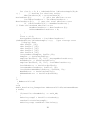
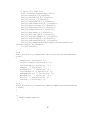
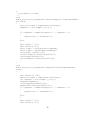
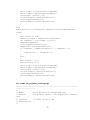
samplenum->SetValue(buffer10);
if (sampnum > numberofsamples-1 || sampnum < 0)
{
sampleerror -> ShowModal();
}
else
{
char buffer7 [17];
char buffer8 [17];
short temp1 = OriginalData[sampnum];
short temp2 = ResizedData[sampnum];
itoa(temp1, buffer7,10);
originalsample->SetValue(buffer7);
itoa(temp2,buffer8,10);
resizedsample->SetValue(buffer8);
}
}
A2.1.4 audio_file_resolution_resizerapp.cpp
//-------------------------------------------------------------------------//
// Name:
Audio Resolution ChangerApp.cpp
// Author:
Jan Michael Abuzo, Jose Arguelles, Francis
Cruz
// Created:
1/1/2002 10:40:22 AM
// Description:
//
37
//-------------------------------------------------------------------------#include "Audio Resolution ChangerApp.h"
#include "Audio Resolution ChangerFrm.h"
IMPLEMENT_APP(Audio_Resolution_ChangerFrmApp);
bool Audio_Resolution_ChangerFrmApp::OnInit()
{
Audio_Resolution_ChangerFrm* frame = new
Audio_Resolution_ChangerFrm(NULL);
SetTopWindow(frame);
frame->Show();
return true;
}
int Audio_Resolution_ChangerFrmApp::OnExit()
{
return 0;
}
A2.1.5 audio_file_resolution_resizerapp.rc
//-------------------------------------------------------------------------//
// Name:
Audio Resolution ChangerApp.rc
// Author:
Jan Michael Abuzo, Jose Arguelles, Francis
Cruz
// Created:
1/1/2002 10:40:22 AM
// Description:
//
//-------------------------------------------------------------------------#include <wx/msw/wx.rc>
A2.1.6 audio_file_resolution_resizerapp.cpp
//-------------------------------------------------------------------------//
38
// Name:
Audio Resolution ChangerApp.cpp
// Author:
Jan Michael Abuzo, Jose Arguelles, Francis
Cruz
// Created:
1/1/2002 10:40:22 AM
// Description:
//
//-------------------------------------------------------------------------#include "audio_file_resolution_resizerapp.h"
#include "audio_file_resolution_resizerfrm.h"
IMPLEMENT_APP(audio_resolution_changerfrmapp);
bool audio_resolution_changerfrmapp::OnInit()
{
Audio_Resolution_ChangerFrm*
frame
Audio_Resolution_ChangerFrm(NULL);
SetTopWindow(frame);
frame->Show();
return true;
}
int audio_resolution_changerfrmapp::OnExit()
{
return 0;
}
39
=
new
Bibliography
WAVE PCM soundfile format.
https://ccrma.stanford.edu/courses/422/projects/WaveFormat/
RIFF Format.
http://www.daubnet.com/en/file-format-riff
Kreyzig, Erwin. Advanced Engineering Mathematics. (Singapore: John Wiley & Sons,
Inc., 2003)
40