1
Chapter 7: Lookup Tables
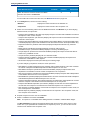
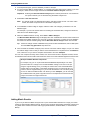
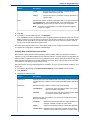
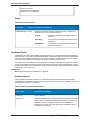
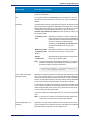
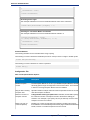
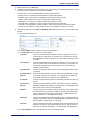
5. Type a new value in the Standardized Term field.
6. Click OK.
Reverting Table Customizations
If you make modifications to a table you can revert the table to its original state. To revert table
customizations:
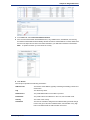
1. In Enterprise Designer, select Tools > Table Management.
2. Select the table you want to revert.
3. Click Revert.
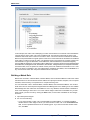
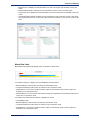
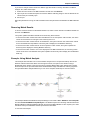
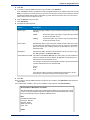
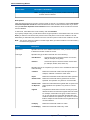
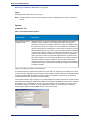
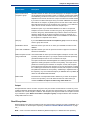
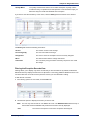
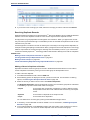
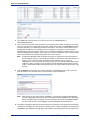
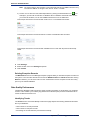
The Revert window displays. It lists all of the added, removed, and modified terms.
4. Select the Revert check box for each table entry you want to revert. You can also click Select All
or Deselect All to select or clear all of the Revert check boxes.
5. Click OK.
Creating a Lookup Table
The Advanced Matching Module, Data Normalization Module, and Universal Name Module come with
a variety of tables that can be used for a wide range of term replacement or standardization processes.
However, if these tables do not meet your needs, you can create your own table of lookup terms to use
with Advanced Transformer, Open Parser, or Table Lookup. To create a table, follow this procedure.
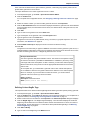
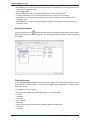
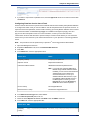
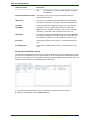
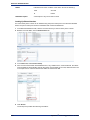
1. In Enterprise Designer, select Tools > Table Management.
2. In the Type field, select the stage for which you want to create a lookup table.
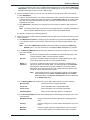
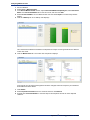
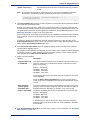
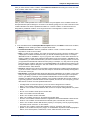
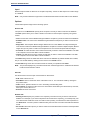
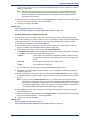
3. Click New. The Add Table dialog box displays.
4. In the Table name field, enter a name for the new table.
5. If you want a new, blank table of the selected type, leave Copy from set to None. If you want the
new table to be populated from an existing table, select a table name from the Copy from list.
6. Click OK.
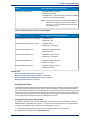
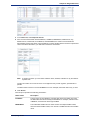
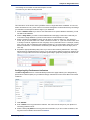
For information about adding table items to your new table, see Adding a Term to a Lookup Table on
page 142.
Importing Data
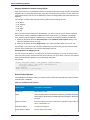
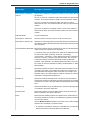
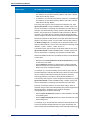
Importing Data Into a Lookup Table
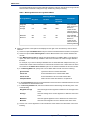
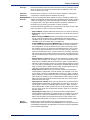
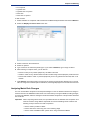
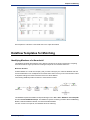
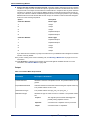
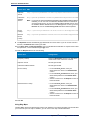
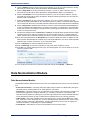
You can import data from a file into a lookup table for use with Advanced Transformer, Open Parser, or
Table Lookup. In order to be able to import data from a file into a lookup table, the file must meet these
requirements:
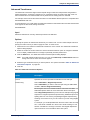
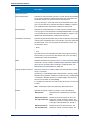
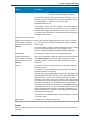
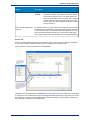
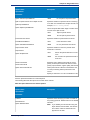
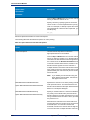
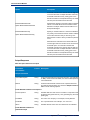
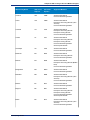
• Must be UTF-8 encoded.
• Must be a delimited file. Supported delimiter characters are comma (,), semicolon (;), pipe (|), and tab
(\t).
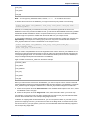
• Fields with embedded delimiters must be start and end with double quotes, for example "1,a","2,b","3,c".
Data Quality Guide
143