1
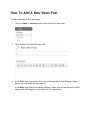
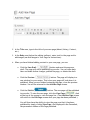
2. In the Title area, type in the title of your new page (About, History, Contact,
etc.)
3. In the Body area (below the editing toolbars), enter text for the page and/or
add images (see Add Images to Your Page for instructions).
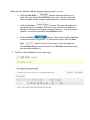
4. When you have finished adding content to your new page, you can:
●
Click the Save Draft (
) button and save this page as a
draft. The page will not be published to your site. You can come back
later and make further changes, publish the page, or delete the draft.
●
Click the Preview (
) button. The page will display in a
new window for your review. This is how your page will look when it is
published. When you are finished reviewing the page, close the preview
window. You will be returned to the Add New Page screen.
●
Click the Publish (
) button. The new page will be published
to your site. To view the new page, click the View Page (
) link
at the top of the screen to view the page live. (The Add New Page screen
will switch to the Edit Page screen once your page has been published.)
You will then have the ability to view the page now that it has been
published by simply clicking View Page. Also displayed is the Permalink,
the permanent address of the Page published.