1
Chapter 1 Introduction
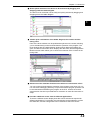
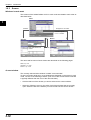
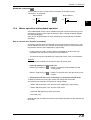
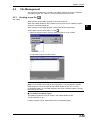
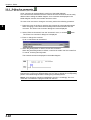
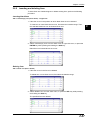
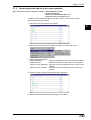
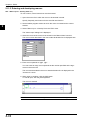
Showing/hiding the tool bar, status bar and dialog bar
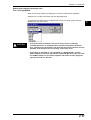
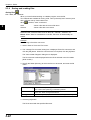
The display status of the tool bar, status bar and dialog bar can be changed.
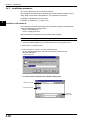
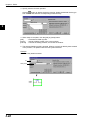
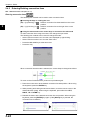
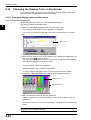
Select "View" from the editor’s menu bar.
Check mark
1
Tool bar
Dialog bar
Status bar
When the check mark is visible: Show mode
When the check mark is not visible: Hide mode
A check mark appears before each bar by default. Every time the check mark is
clicked, the display status is toggled between show mode and hide mode.
* The dialog bar is not provided in the editor.
Display mode
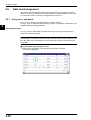
The screen display can be viewed in 5 different sizes.
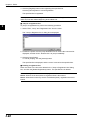
In the editor, you can set whether or not labels and comments are displayed for
each screen.
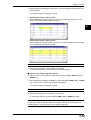
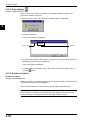
■ Changing the display size
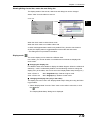
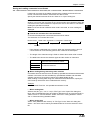
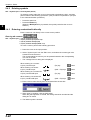
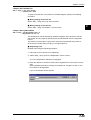
Five different sizes are available to display the ladder diagram. When the software is
started up, "100%" is selected by default. Use the following method to change the
display size. (In the editor, size can be set in the "Display Mode Setup" dialog box.)
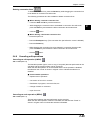
View ➔ Zoom In
View ➔ Zoom Out
Ctrl + PageDown keys: Selects a higher mode.
Ctrl + PageUp keys: Selects a lower mode.
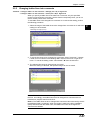
■ Changing the display size (only in the editor)
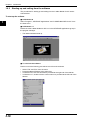
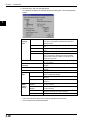
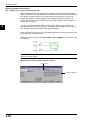
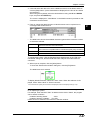
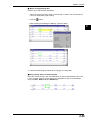
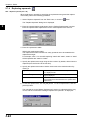
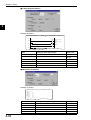
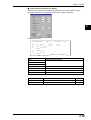
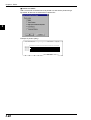
The display size can be set in the "Display Mode Setup" dialog box using the following procedure.
1. Select "Display Mode" from the "View" menu on the editor’s menu bar, or click
the
button.
The "Display Mode Setup" dialog box is displayed.
2-19