1
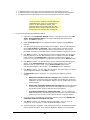
the specified number of times within the time period selected.
c.
Consolidate notifications by waiting until either. You can configure the
Notification Method to wait until being executed until either a specific number of
similar events has occurred, or until a specific amount of time has elapsed.
10. If you don't want to be notified for cached data, check the box that says Disable this
notification method for all Cached (old) data .
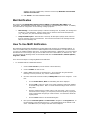
11. Click Next to continue. The Schedule dialog box will appear. Use your mouse to
configure the hours and days you want this Notification Method active.
12. The Name dialog box will appear. Enter a meaningful name for the Notification Method,
and an optional description. If you want this Notification Method to be automatically
applied to all newly created Rules, check the box that says Make this item a default
selection for new items.
13. Click Finish to save this Notification Method. You will be prompted to create another
Notification Method. Select Yes or No at your discretion.
Marquee Device
ELM includes support for electronic signs (marquees) as a notification method. You can send event and
alert information to a supported electronic marquee via TCP/IP or via a serial connection. For a list of
supported electronic marquees, please contact TNT Software's Sales department.
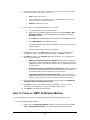
There are five tabs that you can configure, corresponding to the five event types (Error, Warning,
Information, Audit Success and Audit Failures). Each tab has the following items that can be configured:
§
Enable. When this box is checked, the Monitor Item is enabled and will execute as configured.
Uncheck this box to disable the Monitor Item.
§
Font. This is the type of font used in the display. Consult your Marquee’s user manual for details
on how the fonts look and which fonts are supported.
§
Color. This is the color of font used in the display. Consult your Marquee’s user manual for
details on how the fonts look and which fonts are supported.
§
Enable double-height characters. When this checkbox is checked, the height of the characters
is doubled. Consult your Marquee’s user guide to see if this is supported.
§
Enable character flash. When this checkbox is checked, the characters will support flashing
(blinking). Consult your Marquee’s user guide to see if this is supported.
§
Enable Wide Characters. When this checkbox is checked, the width of the characters will be
widened. Consult your Marquee’s user guide to see if this is supported.
§
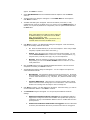
Message Format. Use this field to specify and/or customize the message that will be displayed
on the Marquee. Use the Insert Variable button to insert one or more event variables.
§
Min Duration. This is the minimum amount of time the message will be displayed. The message
will be visible on the Marquee until the Max Duration value has expired, or until a new message is
sent to the Marquee.
§
Max Duration. This is the maximum amount of time the message will be displayed.
38