1
the other side of that router are also down. In this case, you can cause the router down events/alerts to
trigger the programmatic disabling of items whose monitoring depends on the router being up.
The programmatic enabling and disabling of items is accomplished by using a Command Script Notification
Method that executes a VBScript.
»
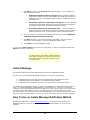
To Programmatically Enable or Disable an Agent from a Command Script Notification Method:
1.
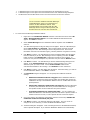
Look at the Properties of the Agent you want to enable/disable and copy the item's Index No.
(GUID) to the Windows clipboard.
2.
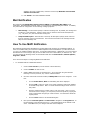
Create a new Command Script Notification Method which will be used to enable or disable the
item. Give it a name of Enable OBJECT or Disable OBJECT where OBJECT is the name of the
object you want to enable/disable. In the Script Name field, name the script Enable.vbs. Be
sure to set the type to cscript. Copy and paste the following into the Script field:
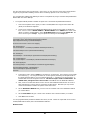
Call Enable_Agent_Object("","<Item>",True)
Sub Enable_Agent_Object(ByRef SessionPasswordString, _
ByRef ObjectIndexString, ByVal bEnableObject)
On Error Resume Next ' Defer error trapping.
Dim SessionObject
Set SessionObject = CreateObject("EEMSVR.TNTEnterpriseSession")
Call SessionObject.Connect(SessionPasswordString)
Dim ItemObject
Set ItemObject = SessionObject.AgentCollection.Find(ObjectIndexString)
Dim LockItemObject
Set LockItemObject = CreateObject("TNTWZ.TNTItemWriteLockHe lper")
Dim ItemCopyObject
Set ItemCopyObject = LockItemObject.LockedItemCopy(ItemObject)
ItemCopyObject.Enabled = bEnableObject
Call LockItemObject.UpdateOriginalItem
End Sub
3.
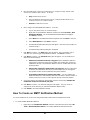
In the above script, change <Item> to the Index No. for the Agent. This number is a long GUID
surrounded by {}. You can get the Index No. for the Agent by examining the Properties tab on
the Agent Properties dialog. Do not include the brackets <> used above, but do include the {}
brackets that surround the Agent's Index No. The above script is used to enable items. To
disable items, change the word True to False. Click OK to save the Notification Method.
4.
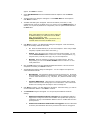
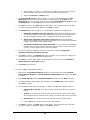
Next, create a new Rule that will be used to execute this Notification Method when an event or
Alert indicating the router is down is received by the ELM Server. Note that you may need to
create an Event Filter to isolate the specific router down event.
5.
On the Notification Methods tab, put a check in the checkbox next to the Notification Method
you created above.
6.
On the Event Filters tab, put a check in the checkbox next to the Event Filter you created.
7.
Click OK to save the Rule.
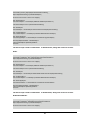
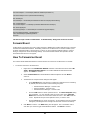
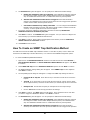
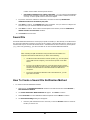
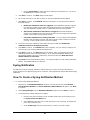
You can programmatically enable and disable other items, as well. Below are scripts that can be used to
enable/disable Monitor Items, Rules and Notification Methods:
Monitor Items:
30