1
appear. Click Next to continue.
2.
Select Mail Notification from the Notification Method dropdown and click Next to
continue.
3.
The Select Mail Type dialog box will appear. Select SMTP Mail from the dropdown.
Click Next to continue.
4.
The SMTP Host dialog box will appear. Enter the IP address, host name, or fully
qualified domain name for the SMTP server you want to use in the SMTP Host field. If
desired, or if required by SMTP server configuration, enter an optional SMTP address in
the From field.
Note
When using SMTP servers that have been configured
to disallow relaying, you will need to use the FROM
field. For more servers, using
[email protected], where yourdomain.com is
a domain that is served by the SMTP server.
5.
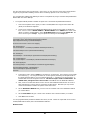
Click Next to continue. The Mail Message dialog box will appear. Enter the address,
subject and message details for the email:
§
To. Enter the SMTP address(es) for the email recipients. When using multiple
recipients, separate entries with a semi-colon (;).
§
Subject. Enter the subject you want to use for the email message. You can
use the Insert Variable button to insert one or more event parameters (e.g.,
computer name, event ID, event type, etc.) into the Subject line.
§
Message. Enter the message you want for the email message. Like the
Subject field, you can use the Insert Variable button to insert one or more
event parameters.
6.
Click the Test button to test the SMTP Email Notification Method. Once the test has
completed successfully, click Next to continue.
7.
The Mail Message Options dialog box will appear. You can configure two options for
email notification methods:
§
Max Message. Use this field to specify a maximum message size. By default,
the message size is limited to 1,024 characters. Setting a lower value is useful
for those email clients/devices (e.g., cell phone, etc.) that have limited viewing
size.
§
Compress White Space. When this box is checked, all white space (CR/LF)
will be removed from the message prior to its transmission. This removes line
breaks in the message and also helps to reduce message size.
8.
Click Next to continue. The Rule dialog box will appear. Select the Rule(s) you want to
use this Notification Method. Click Next to continue.
9.
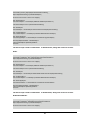
The Threshold dialog box will appear. You can specify three different threshold
settings:
a.
Disable this notification when it is triggered. If the Notification Method is
triggered the configured number of times within the specified time period, the
notifications will stop. The Notification Method is then re-enabled after the time
period specified.
b.
Activate this notification method after it is triggered. When this threshold
is selected, the notifications will not be processed unless the rule is triggered
37