1
Chapter 6: Tools and Techniques
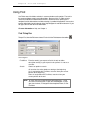
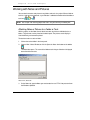
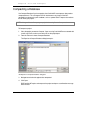
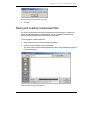
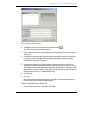
Customize Tools Menu dialog box
2.
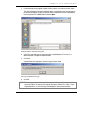
To add the first item, click the Command Line browse button
.
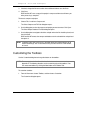
The Select Command Line dialog box opens.
3.
Use the dialog box to select the executable file for the program you want to start from the
Tools menu.
4.
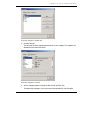
In the Menu Text field, type the name you want the command to have in the Tools menu.
For example, if you were adding a command for opening your timesheet you might
make the Menu Text Open Timesheet.
5.
If you want the program in the Command Line to open a particular file, also fill in the
Arguments and Initial Directory fields (otherwise leave them blank). For example, if you
were adding a command for opening your timesheet, you would fill in the Arguments field
with the filename of the timesheet (i.e. timesheet.xls) and the Initial Directory field with the
location of the timesheet (i.e. X:\Administrative Files).
6.
Click Add Item.
7.
Click OK.
BSD CostLink/AE adds the command to the Tools Menu. Choose the command from
the Tools Menu to launch the executable program.
To delete a command from the Tools menu:
1.
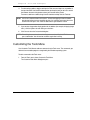
From the Tools menu choose Customize Tools Menu.
BSD CostLink/AE User Manual
97