1
Chapter 6: Tools and Techniques
These commands work the same as in standard Windows programs, such as Windows
Explorer.
Dragging and Dropping
Drag and drop is a powerful tool for copying folders and tasks in BSD CostLink/AE. You can
drag and drop items between the Tree or Sheet Panels of different windows.
When you drag an item to a position where you are allowed to drop it, BSD CostLink/AE
changes the mouse pointer to a hand with a page:
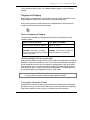
Effects of Dragging and Dropping
The default effect of dragging and dropping with the left mouse button depends on the
situation as follows:
When You Drag and Drop…
Then BSD CostLink/AE…
from a resource window to a project
copies the item(s)
within the same window
moves the item(s)
Example: You copy an assembly
from the Assembly Resource window
into your estimate.
Example: You move tasks from one
folder to another in the estimate.
Left-Click and Right-Click for Drag and Drop
When you drag and drop using the left mouse button, BSD CostLink/AE performs the default
operations as listed in the table above. In most cases, BSD CostLink/AE allows other options
besides the default. You can access these options by dragging with the right mouse button
instead of the left. In this case, when you release the right mouse button to drop the item(s),
BSD CostLink/AE opens a context menu with the available options. The default option (the
one that would happen if you dragged with the left) is shown in bold.
Tip:
While learning to use BSD CostLink/AE, drag and drop using the right-mouse button.
This helps you learn the effects of drag and drop in different situations.
Turning off the Confirmation Prompt
By default, BSD CostLink/AE prompts you to confirm before completing any drag and drop
operation. You may turn this off from the Tools menu by choosing Prompt before completing
Drag. When the option is turned on, there is a checkmark next to the command.
BSD CostLink/AE User Manual
89