1
Chapter 3: Details of Individual Loggers
Chapter 2: Plotting, Exporting, and Printing
and check the Deployment Notes folder for the notes you entered. If you did not
enter any notes, the Deployment Notes folder will not display.
Reading out the HOBO Weather Station Logger
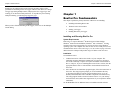
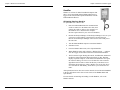
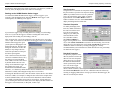
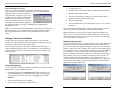
To read out the HOBO Weather Station logger, connect a logger to your
computer, click the Logger menu, and select Readout. If the logger is still
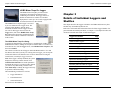
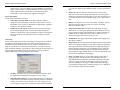
collecting data, the following screen appears:
If you want the logger to stop recording data before reading out (off-loading),
click Yes. If you want the logger to continue recording data in the current
deployment while reading out (off-loading), click No.
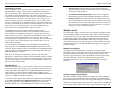
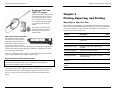
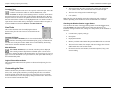
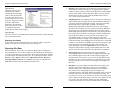
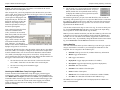
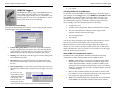
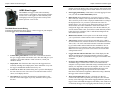
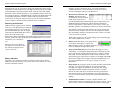
After saving the file, you will be prompted to select the data series you wish to
view in a plot. Series selection is the same for all loggers. However, the HOBO
Weather Station logger also gives
you the option of changing the time
displayed in the plot. This does not
change the actual time saved in the
datafile; it only changes the time
used in the presentation of the plot
and when exporting data.
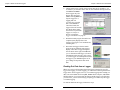
Time is shown in hours offset from
Universal Coordinated Time (UTC),
also known as Greenwich Mean
Time (GMT). The time offset listed
by default matches the time zone
setting used to launch the logger. In
this example, the logger was
launched in Eastern Standard Time.
Therefore, -5 is filled in by default because Eastern Standard Time is five hours
behind UTC (GMT) (when daylight savings time is not in effect).
To change the default time offset, enter the number of hours the new time differs
from UTC (GMT). For example, to change the time offset in the example above
to Pacific Standard Time, enter -8 because Pacific Standard is 8 hours behind
UTC (GMT) (when daylight savings time is not in effect). To help make sure
you are entering the correct time offset, this screen displays the date and time for
the logger’s first measurement, or data point, in three ways:
58
BoxCar Pro User’s Guide
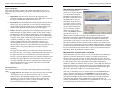
View Properties
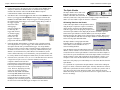
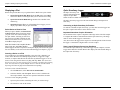
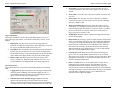
Using the arrow tool, double-click anywhere inside
the plot window to open the View Properties dialog.
(Note: If you double-click too close to a particular
series, the series dialog opens.) Show or hide the
legend and title. Select Show Border to draw a
border around the view area. Select Show Filled to
display the background in a solid color.
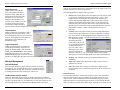
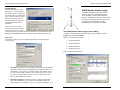
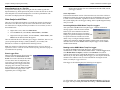
Time Axis Properties
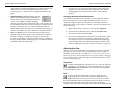
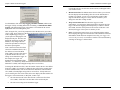
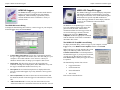
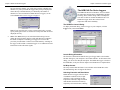
To modify the display of the
time axis, double-click below
the time axis with the arrow
tool. The Axis Properties
dialog lets you modify the
start and end times of the
axis (click Min or Max).
Select Show Gridlines to
toggle vertical gridlines on or
off, or click Custom Tick Marks to customize the axis labeling. You can also
change the axis color and location. Select Lock Axis Bounds to lock the axis,
which then cannot be affected by zooming or dragging (it is usually
recommended that you lock the data axis rather than the time axis, particularly
for data from state loggers).
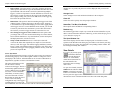
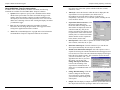
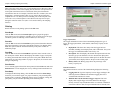
Data Axis Properties
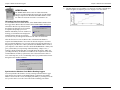
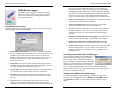
To adjust the properties of the
data axis, double-click near the
data axis. The Axis Properties
dialog shown lets you modify
the minimum and maximum
values represented by the data
axis. You can also toggle
horizontal gridlines on or off,
choose custom tick marks, and change the color and location of the data axis.
Select Lock Axis Bounds to lock the axis, which then cannot be affected by
zooming or dragging. Note: When viewing a plot from an H6 State logger, the
data axis is locked by the default.
BoxCar Pro User’s Guide
15