1
Chapter 3: Details of Individual Loggers
•
•
•
•
Chapter 2: Plotting, Exporting, and Printing
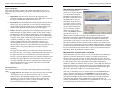
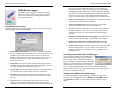
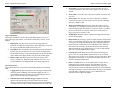
Delayed Start. Select this option if you wish to postpone the launch
until a specific date and time. Type the desired date and start time in the
specified fields. This start mode is useful for synchronizing multiple
loggers, or when it is important to start the launch at an exact time. It is
also useful if you plan on setting up the logger in the field and do not
have a laptop to bring with you. You can add sensors to the logger any
time before the specified start time.
Button Start. This option is ideal for launching the logger in the field
without a laptop. Configure the logger in the lab or office, transport it
to the field and set it up, and then simply press the Start Logging button
on the logger itself for 1 second. With this mode selected, you can add
a sensor any time before the start button is pressed. This start mode is
also useful if you want to trigger the start of a launch on an event.
Save Settings in Logger for Later Launch. Select this option when
you simply want to save the current launch settings for a future launch,
but not start the launch now. Any customizations, such as descriptions
and deployment notes, will also be saved.
Wrap around when full. If this box is checked, new data will
overwrite the oldest data sequentially one sample at a time when the
memory is full. The logger will continue logging indefinitely until the
logger is either off-loaded and stopped or the battery fails. If this box is
not checked, the logger will stop logging when the memory is full and
preserve the acquired data.
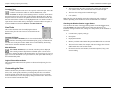
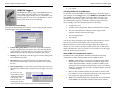
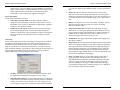
Sensor Information
Use the Sensor Information section to verify the correct sensors are connected
and measuring properly. Select either English or Metric to change the current
unit display in the software. Off-loaded data can be viewed in either Metric or
English units, regardless of what is selected before launch.
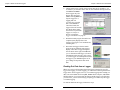
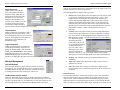
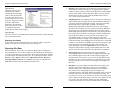
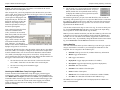
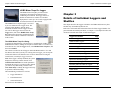
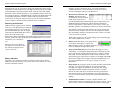
The Sensor Information section
lists the sensors currently
connected to the logger. The list is
automatically updated whenever a
sensor is added or removed. Note:
If a sensor is removed and then
immediately re-inserted, it may
not be auto-detected. Click the
Reset button to refresh the list of
sensors. This works during
configuration only; if the logger is
recording data, new sensors will
not be identified. Also note that for sensors with two measurement parameters
56
BoxCar Pro User’s Guide
windows are very small, only the series will be displayed until you resize the
window.
Arrange Icons
Select Arrange Icons to order minimized windows in the workspace.
Close All
Select Close All to quickly close all open plot windows.
Status Bar, Tool Bar, View Details
These options show and hide the corresponding features.
Readout Log
The readout log provides a simple way to track the location of datafiles on your
disk. For more information about the readout log, see the section Keeping Track
of your Datafiles on page 22.
The Open Window List
This feature displays the file names of all open plots in a list below a menu
separator in the Window menu. Bring any plot window to the front by selecting
it from the list or by typing Alt+W and the corresponding window number. The
list holds approximately nine windows.
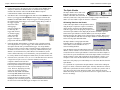
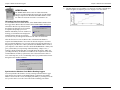
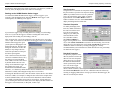
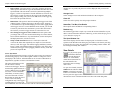
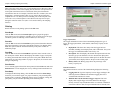
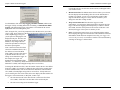
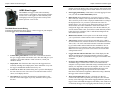
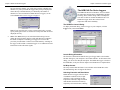
View Details
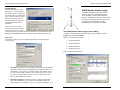
To get point-by-point
information about the
currently displayed
datafile, use View Details,
which shows information for
the entire datafile. The
information does not change
with a zoom.
To open View Details, click the
Window menu and select View
Details, or click the icon on the
toolbar. View Details is divided
into two parts: the upper section
describes the source of the data and the lower shows the actual data points.
BoxCar Pro User’s Guide
17