1
CHECKING PVT DATA
Launch the REACT PVT software. On the menu bar click on the Load and Parse PVT files. If the
Open File Box is not set for APPLES, navigate to it. After you get to the APPLES folder the first
time, it will be the default value the next time unless you are using the PVT for various other
research/clinical trials. In the file box click on the file APPLES.pvt and click open. In the Files
Loaded box in the top left corner you can click on the down arrow and the complete list of
subjects and trials will display. Click on the subject and trial number you wish to view. Click on
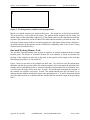
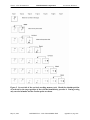
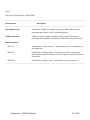
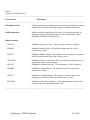
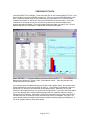
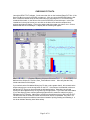
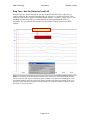
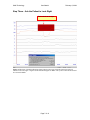
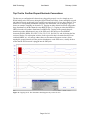
detailed and then click on Analyze. A display like the following will appear:
Make sure the Subject ID, Trial No., Date_Time fields are correct. Also verify that the Subj.
Initials match those of the subject.
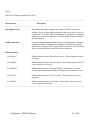
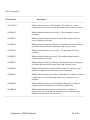
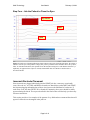
If you notice that the field labeled Wrong key R’s has a value greater than 0, this means that the
subject was trying to use the wrong button on the PVT. If the subject is left handed, make sure
that during PVT set-up you have selected the left-handed option. Otherwise, be sure and
reinforce to the subject that they are to press only the right button. If you notice that False Starts
[c] or False Starts [e] have values significantly higher than 0 it means the subject is trying to
anticipate the PVT stimulus. Make sure to reinforce to the subject not to try and “beat” the PVT.
Let them know that in humans a reaction time less than 100 ms is impossible. Key Held > 3 s
means that the subject has held the button down instead of quickly pressing and releasing it. It
can be an indicator that they have fallen asleep.
Page 9 of 10