1
specifically for each format in the sections below. A comment can be added in the dialog that is
included in all text output. The dialog defaults to listing all metabolites in the Experiment, but
these can be removed or put back in with the Add Metabolite and RemoveSelected buttons. The
Add Metabolite Mixture …button will pop up another small dialog in which you can design a
“mixture” of two or more metabolite results with different scaling factors. This will be described
in detail later. The Cancel button quits the dialog without performing any output. The OK button
outputs the described collection of metabolite results and mixtures to the indicated format and
Output Location.
For all formats, the dialog creates a header comment block that is prepended to all text files
being output. This header describes the Experiment and results/mixtures being output, and lists
the modifying parameters for metabolites and formulae for any mixtures.
The Metabolite and Mixed Metabolite Output List is a dynamic list that changes length as
entries are added or deleted. Each row in this list is a result that will be saved upon output. The
widgets in each row affect the way the results are output as defined below:
•Checkbox – is used to select rows to delete from the output list, but otherwise does not affect
whether a given metabolite/mixture is output or not. All rows present when you hit OK are used
to create the output.
•Metabolite List – drop list, is used to select which metabolite to output. The other widget
settings in this row modify the results for the selected metabolite/mixture. It is possible to have
two or more of the same metabolite selected for output. The only requirement is that they have
unique strings in the Unique Abbreviation field.
•Unique Abbreviation – text field, a unique string used to identify this output row. In LCModel
and jMRUI Data Text, this is the metabolite output filename. In GAVA Text, this is the first
column metabolite name string.
•Scale – floatspinfield, should contain a float value and should be positive. The area values for
all lines in an Experiment Simulation result are multiplied by this scale value before being
output.
•Shift – floatspinfield, should contain a floating point PPM value and can be positive or
negative. This shift value is added to all ppm values for all lines in an Experiment Simulation
result before being output.
Range Start and Range End – floatspin fields, should contain floating point ppm values. These
values default to the min/max ppm values displayed for the active Experiment. They can be set
narrower to filter the results that are output. Only the Experiment Simulation lines that lie
between the start and end ppm range will be included in the output files. Each row can have a
different range. Again, all these settings are saved in the header comment block on output.
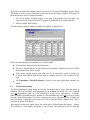
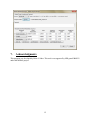
Add Metabolite Mixture …Button
This button allows users to add a “mixture” result to the Output list. Each mixture can consist of
two or more metabolites, each with a different mixture scaling factor (as opposed to the Scale
field on the main dialog). The Mixed Metabolite Designer widget is shown below. The user has
to specify a Unique Name string that is different from all other strings in the Abbreviation
column in the main dialog. The user can click on the Add Metabolite and Remove Selected
(with a check box selected) buttons to change the number of metabolites in the mix. The drop list
7