1
Excel Templates for ACT! User’s Manual
9
Creating a merged document
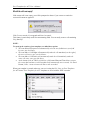
To merge a template with data from the current contact, run Excel Templates for ACT!, then
select your template and click OK. Excel Templates for ACT! will open the template in Excel and
replace the field codes with the corresponding field values of the current contact.
Saving the document
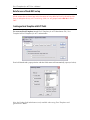
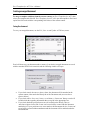
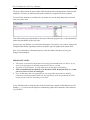
To save your merged document, use the File | Save As and Update ACT History menu.
Excel will then save your document under a name of your choice (merged documents are saved
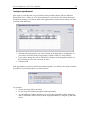
with the standard .XLS Excel extension) and the following window will open.
•
•
•
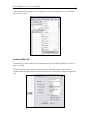
If you check Attach document to history alone, the document will be attached to the
current contact, either under the History tab or the Documents tab (see Attachment
Options below)
If you check Add a ‘Letter sent’ history record alone, a ‘Letter sent’ history record will
be added with the regarding information that you typed in the appropriate box.
If you check both and your preferences are set to attach to the History Tab (see
Attachment Options below) the ‘Letter sent’ record will be created with the document
attached to it. If your preferences are set to attach to the Documents tab, the ‘Letter sent’
record will be created without attachment and the document will be attached under the
Documents tab.