1
Finding Quality Results
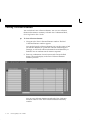
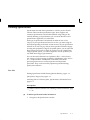
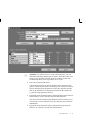
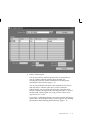
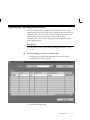
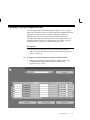
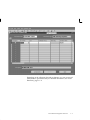
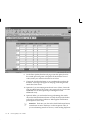
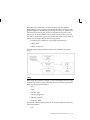
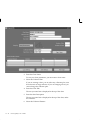
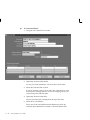
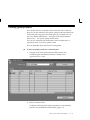
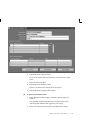
You can query to find specific quality results using the Find Results
window or by using the Show Results Where region.
The Find Results window can be invoked as you are:
• Updating and Deleting Quality Results: page 6 – 17
• Viewing Quality Results: page 12 – 37
• Viewing Quality Results by Lot Number: page 12 – 40
• Viewing Quality Results by Serial Number: page 12 – 42
The Show Results Where region automatically appears as you are:
• Viewing Descriptive Statistics: page 12 – 34
• Using the Quality Results ReportWriter: page 12 – 44
• Creating and Viewing Pareto Charts: page 12 – 12
• Creating and Viewing Trend Charts: page 12 – 21
• Creating and Viewing Control Charts: page 12 – 27
• Creating and Viewing Histograms: page 12 – 16
Quality results can be found using any combination of selection
criteria. For instance, you can select quality results that were entered
on a specific date, by a specific user, and were assigned the same
collection number.
"
C–2
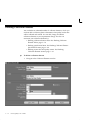
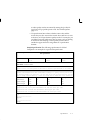
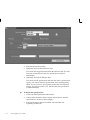
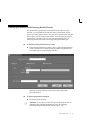
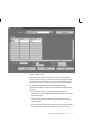
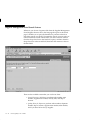
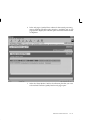
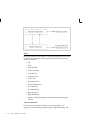
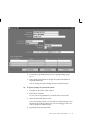
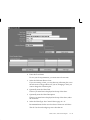
To enter search criteria:
1.
In the Find Results window or the Show Results Where region,
select the Collection Element to use for your query.
2.
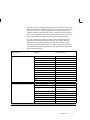
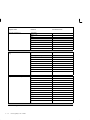
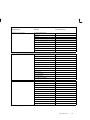
Select the query Condition (operator). See: Query Operators: page
C – 4.
3.
If the condition selected requires a range, enter both the From and
To value. If the condition requires a single value, enter only the
From value. If the condition (e.g., is entered) requires a null
character, do not enter anything. To create an In or Not in List, see
Creating In and Not In Lists: page C – 6.
4.
Repeat steps 1 through 3 until all selection conditions are entered.
5.
If you are using the Find Results window, choose the Find button to
display all quality results that meet the specified selection criteria.
If you are using the Show Results Where region, the quality results
Oracle Quality User’s Manual