1
Chapter 12: Customizing Maestro
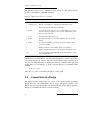
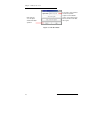
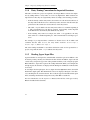
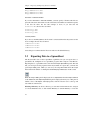
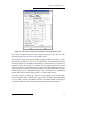
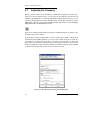
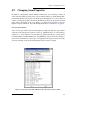
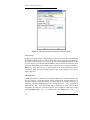
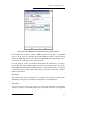
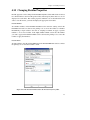
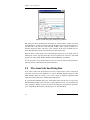
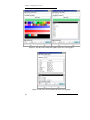
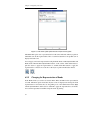
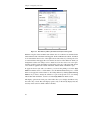
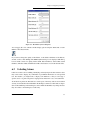
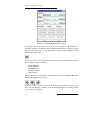
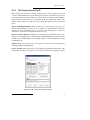
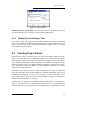
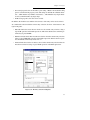
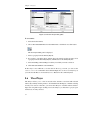
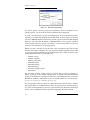
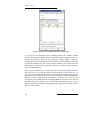
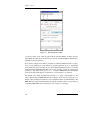
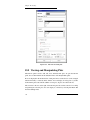
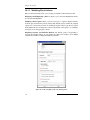
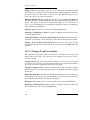
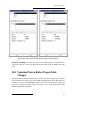
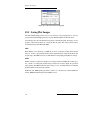
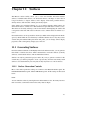
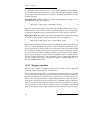
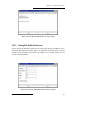
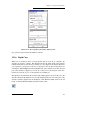
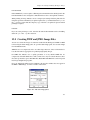
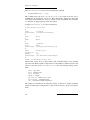
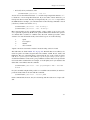
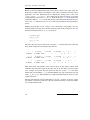
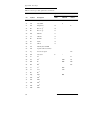
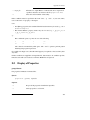
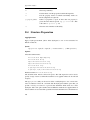
Figure 12.12. The Fog folder of the Display Options panel.
Fog options are preserved between Maestro sessions.
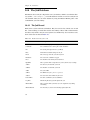
12.3.6 Depth Cues
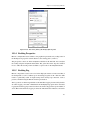
When you are viewing in stereo or in perspective and you zoom in on a structure, the
structure can appear to “flatten”. This happens because the entire depth of the structure
remains in the field of view when you zoom in: it is not clipped at all, and the depth cues
(eye separation or perspective scale) are not preserved. You can preserve depth cues by
selecting the Adjust Clipping to Preserve Depth Cues option. When you do this, the front
part of the structure is clipped as you zoom in, so that you see only the parts of the structure that are “in front of you”, not the parts that are “behind you”.
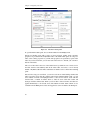
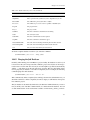
The depth cues are affected by the location of the clipping planes: the closer they are to the
structure, the better the depth cues. To move the clipping planes in to the fit the parts of the
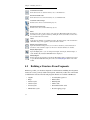
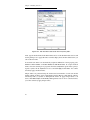
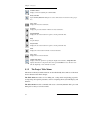
structure currently displayed in the Workspace, click Enhance Depth Cues in the 3D
folder, or click the Enhance depth cues button in the toolbar.
Maestro 6.5 User Manual
149