1
iVu Barcode Reader (BCR) User's Manual
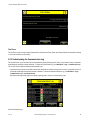
• To see an expanded view of each entry, click on the small right-triangle control on each entry.
• To save the log, click the save icon. The saved communication log can be loaded into the emulator for troubleshooting offline.
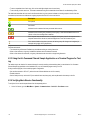
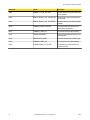
The table below describes the icons used in the Communication Log, the up-arrow indicates an incoming request to the iVu from the
control device; the down-arrow indicates an outgoing response from the iVu to the control device.
Icon
Description
Port opened.
Port closed.
Indicates that the command has been processed without errors.
Indicates that the incoming entry is stalled (no new bytes), or end-of-frame delimiter was not received, or client is not reading data on ethernet.
If the response frame contains an error or is dropped, the log entry icons for the request and the
response frames will be colored red, and the displayed error count will increment by one.
If the command takes a long time to process, the last long entry will change to an hourglass (for
example, during trigger of long inspections).
For Ethernet channels:
• The channel's log will show an Enabled entry that indicates which port is being listened to.
• When a client connects, a log entry is added that indicates which IP address connected.
• When a client closes the connection, a log entry indicates that the channel is no longer being listened to.
6.3.3 Using the iVu Command Channel Sample Application or a Terminal Program for Testing
The easiest way to test that the iVu command channel is correctly receiving and transmitting data is to use either the iVu Command
Channel Sample App (available on the installation CD) or to use a terminal program running on a PC:
If using a terminal program, in the terminal program's configuration:
• Set new-line transmit to <CR><LF> (and set the end-of-frame delimiters on the iVu to match).
• Enable local echo.
• Set the Serial port set up so that the PC port number's baud rate, data, parity, and stop bits match those setup on the iVu.
6.3.4 Verifying Basic Receive Functionality
To verify the iVu can receive request frames from the requesting device:
1. On the iVu Sensor, go to the Main Menu > System > Communications > Serial I/O > Port Status screen.
60
www.bannerengineering.com - tel: 763-544-3164
Rev. A






































![iVu Plus BCR Quick Start Guide [ 154722 ]](http://vs1.manualzilla.com/store/data/005993547_1-f3116733e8f794d590f924e47d0edfff-150x150.png)