1
ACTIVprimary User Guide
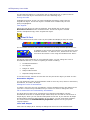
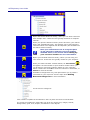
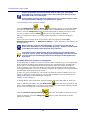
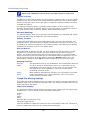
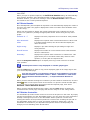
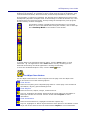
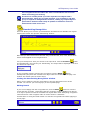
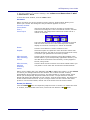
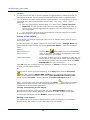
You can also select a preset color from the lower Tray before you add the line. In
addition to the preset color selectors you also have four custom color selectors
.
To define a custom color, Control-click one of the four boxes and select a color using the
Color Picker that appears.
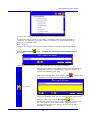
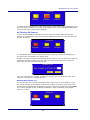
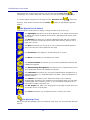
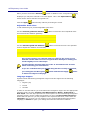
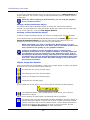
To draw multiple copies of a line, click the Rubber Stamp
button. For more
information about using the Rubber Stamp mode, refer to the section about the
Resource Library.
Delete a line
•
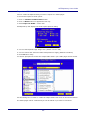
Click the Undo
out.
•
Drag the annotation across to the Flipchart Bin, if displayed.
•
Double-click the line and select the Delete
Properties Palette.
•
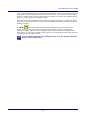
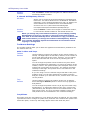
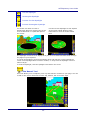
To remove all images, lines, shapes and text objects from the page, click the
button, if drawing the line was the last action you carried
Wipe Clean
button from the Object
button and choose Clear objects
.
Manipulate the line
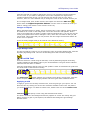
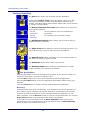
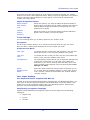
You will notice that when you selected the Line Tool, the Selection Tool
was
automatically enabled. This allows you to manipulate your Lines straight away.
•
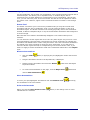
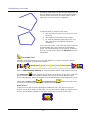
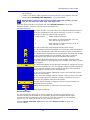
Quickly adjust the length and angle of the line, move the ACTIVpen so that it is
near one of the line ends. The cursor will change to the line stretcher. Click the
line end and drag it until the line is the desired length and angle.
•
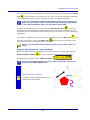
Easily adjust the length of a horizontal or vertical line using the handles at
each end of the line.
•
To move a line, position your ACTIVpen over the line then click and drag the line
to a new location.
•
You can also rotate a line using the Rotate handle.
•
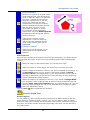
To see the edit options for a line object, double-click it to view the Object
Properties Palette.
The Shapes Tool
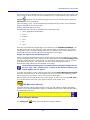
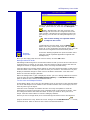
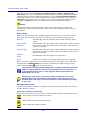
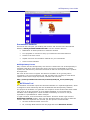
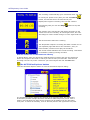
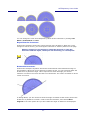
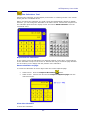
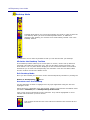
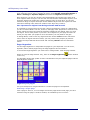
Click the Shapes button and the Tool Tray will update to reveal an assortment of shapes
from the Shapes folder of the Resource Library:
11