1
ACTIVprimary User Guide
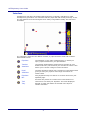
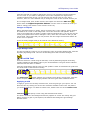
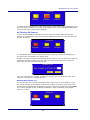
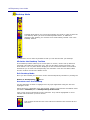
A virtual Ruler will be displayed, which you can resize, reposition, rotate and interact
with using the pen and highlighter Tools.
Change the appearance of the Ruler
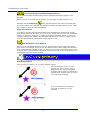
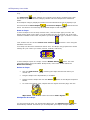
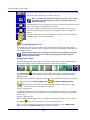
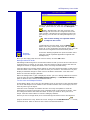
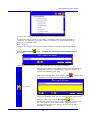
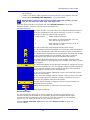
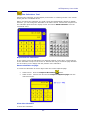
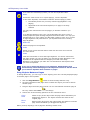
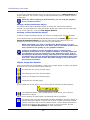
To increase or decrease the length of the Ruler, double-click the Ruler and click the
Increase Ruler
or Decrease Ruler
button in the Object Properties Palette.
When increasing or decreasing the size of the Ruler you are simply
altering the length of the Ruler not its scale.
Double-click the Ruler to open the Edit Toolbox regardless of what Tool
is currently active in the Main Toolbox.
You can change the color and transparency values of the Ruler by clicking Tool Menu >
Preferences > Tools.
Reposition the Ruler
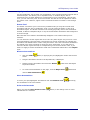
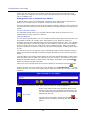
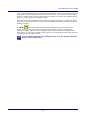
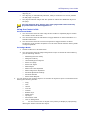
Position the ACTIVpen anywhere along the bottom edge of the Ruler. When the cursor
changes to mover arrows, you can drag the Ruler to another position on the page.
Position the Ruler accurately by snapping the zero point to a grid point
in a grid, which may or may not be visible on the page.
Rotate the Ruler
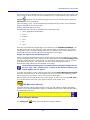
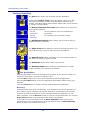
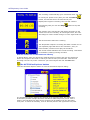
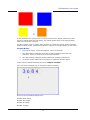
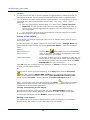
Position the ACTIVpen anywhere along the top edge of the Ruler. When the cursor
changes to rotator arrows, you can click and rotate the Ruler to a particular angle. The
center of rotation is at the top of the zero mark on the measurement scale. The current
angle of rotation is displayed in the center of the Ruler.
In Design Mode, you can choose to show the angle of rotation at the center point of the
Ruler. By default this is displayed. Control-click the Ruler, and choose Show degrees
to turn this option off if you don't want the angle of rotation to be displayed.
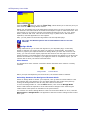
Draw a straight line
You can use the Ruler for measuring existing objects on screen or you can use the Ruler
to draw out lines of a set size and at a set angle if required.
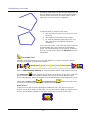
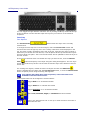
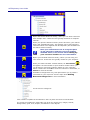
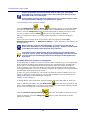
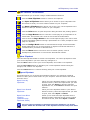
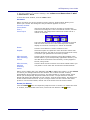
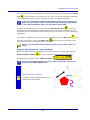
To draw using the Ruler select the Pen Tool
then position the Ruler at the spot you
wish to draw a straight line. As with the
Protractor, you may rotate the Ruler around
the 0 (zero) axis of the measurement scale.
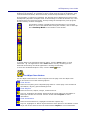
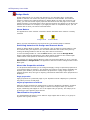
To draw along the Ruler having previously selected the Pen Tool
position your
ACTIVpen just above the top edge of the Ruler until you notice the cursor change so
that a line appears above the pen symbol. Now draw along the pen from your start
point to the desired length.
59