1
d-briDGe Installation and User Manual
6.3.2. Successful Connect – Updates Available
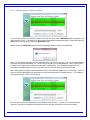
In this case, for example, the DG DPA 5 drivers are out of date (red), and the Download button and progress bar
show up on the screen. The progress bar will keep you informed of the download progress should you choose to
download the latest drivers by clicking the Download button.
When you click the Download button, you will be prompted to confirm starting of the download.
Note: The DG Update application can only download and install one item at a time. The user will be prompted for
whichever one they want to update first. The reason that only one can be downloaded at a time is that the after
the drivers are unzipped the installation program begins automatically. The DG Update program must exit
because the installation program may have a newer version of the DG Driver Update utility to install.
After choosing Yes, the program will download the drivers and update the progress bar while doing so. Once the
drivers have been downloaded, the application will unzip them and start the installation process. The dialog box
will go away after the install has been started.
After the drivers have been downloaded (to the Windows temp directory – if you wish to save them for other
machines), they will be unzipped and the program will exit right after starting the new driver installation.
Page 21 of 24
© 2010-2013 Dearborn Group, Inc.