1
80
InspireData™ User's Manual
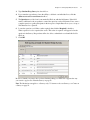
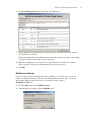
4. When you are finished, click OK.
The cells in your formula field will be filled in automatically with calculated data.
Note: For more detailed descriptions on how to use formulas, see Formula functions on page 198
and Formula operators on page 196.
Formatting data in a field
Formatting data in a field lets you control how you want the data in numeric, date, time and
true/false fields to be displayed. Formatting will change only the way the data looks, not the data
itself.
For example, if your field had the number 186282.397 in it, you could change the field format to
display the number with commas (186,282.397), with only one decimal place (186282.4), in
scientific notation (1.9E+05), as currency using dollar, pound or Euro ($186,282.40, £186,282.40,
or €186,282.40) and more.
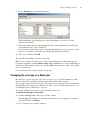
To change a field's format:
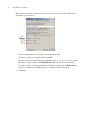
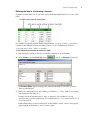
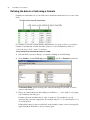
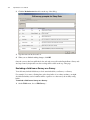
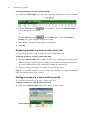
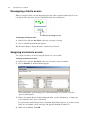
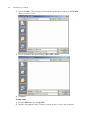
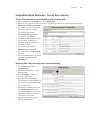
1. Click on the field heading of the field you want to format.
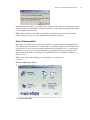
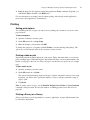
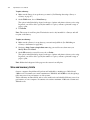
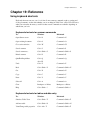
2. On the Toolbar, click the Format button
to format your field type.
3. Make your changes, then click OK.
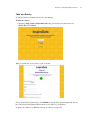
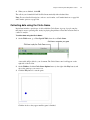
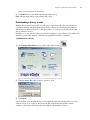
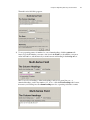
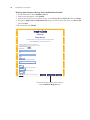
The formatting options you see will depend on the data type of the field you selected.
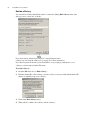
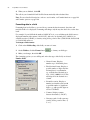
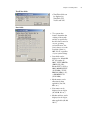
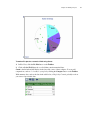
Number fields:
• General format: Displays
numbers up to 10 decimal places.
• Fixed decimal format: Displays a
specific number of digits after the
decimal place for each number,
e.g., with the fixed decimal set at
four: 1.2345, 1.0000, 3.1415. This
will align all of the decimals in a
column.
• Scientific notation: Displays a
number in scientific notation with
a specified number of significant
digits, e.g., with specific digits set
at four: 1.235E+03.
• Commas: Display commas
between thousands (1,234,567).
• Currency symbol: Add a currency
symbol (dollar, pound or Euro: $,
£ or €).