1
Chapter 8: Organizing data using structured fields
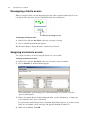
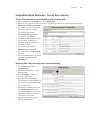
Duplicating a column in a series or multi-series field
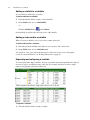
You can add a column to a series or multi-series field with data identical or similar to an existing
series column by creating a duplicate of that column.
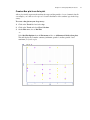
To duplicate a series column:
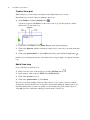
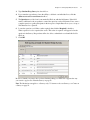
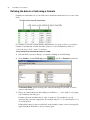
1. Click on the column heading of the series or multi-series column you want to duplicate.
2. On the Edit menu, choose Copy.
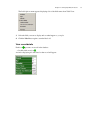
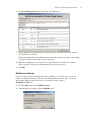
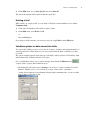
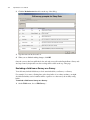
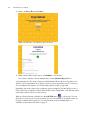
3. On the Edit menu, choose Paste Special, then select Add New Series Columns.
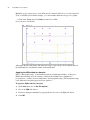
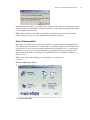
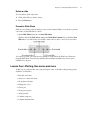
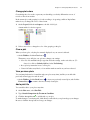
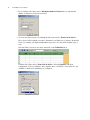
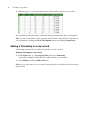
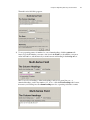
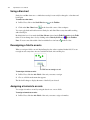
A dialog box appears asking you to give a heading to the new column. Type the heading, then
click the Accept button .
Duplicated series columns are added to the end of the series of a multi-series field.
Note: If you have formatted your fields, and if the series or multi-series column headers are
defined using a pattern, duplicated fields will continue that pattern. If they use a list of values,
duplicated columns will be assigned a name based on the title of the field and the title of the series
column you copied. For more information on formatting fields, see Formatting data in a field on
page 80.
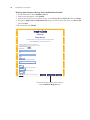
Renaming a column in a series or multi-series field
You can change the headings of the columns in a series or multi-series field. Renaming is
especially useful after you add a new series column.
To rename a series column:
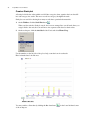
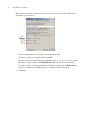
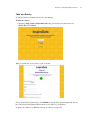
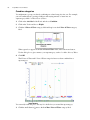
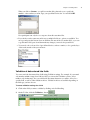
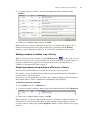
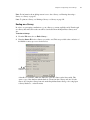
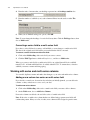
1. Click on the column heading of the series column you want to rename.
2. Type your new column heading.
Note: If you change the column heading in a series or multi-series field that uses a pattern,
InspireData will convert the pattern into a list of values.
Changing the pattern of column headings in a series or multi-series
field
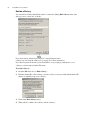
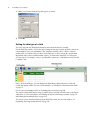
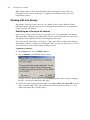
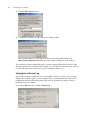
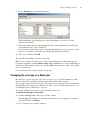
You can redefine the pattern you are using for the headings of the columns in a series or multiseries field.
129