1
Flex.View V3.1 Help Manual
1.4 Desktop Layouts
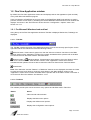
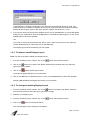
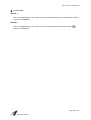
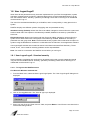
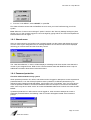
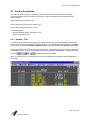
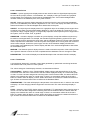
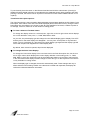
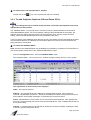
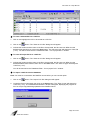
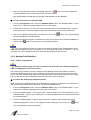
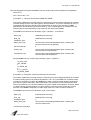
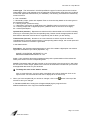
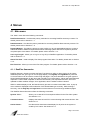
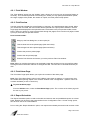
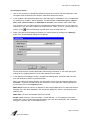
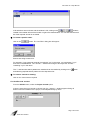
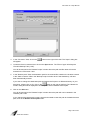
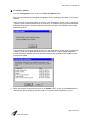
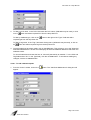
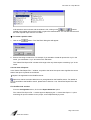
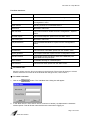
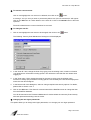
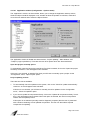
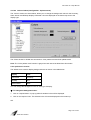
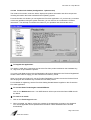
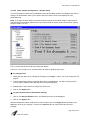
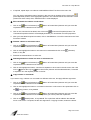
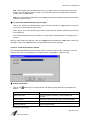
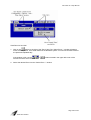
The "Desktop Layouts" option from the "Configuration" menu displays a "Desktop Layout" window in
the Flex.View application window. An example is shown below:
From this window a user can store a number of different desktop layouts and recall them as and when
required.
If your system employs a large number of displays, this feature is most useful as it allows you to divide
your system into groups of displays. For example, you could define a desktop layout that represents
the system overview and then define a number of other desktop layouts that represent each control
zone within your system.
Note: This function must first be enabled via the "Miscellaneous" window of the "Configuration Options" menu. You must be connected and logged onto the RealFlex server before you can save,
delete or recall Desktop Layouts.
1.4.1 To enable the Desktop Layout feature
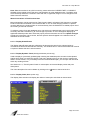
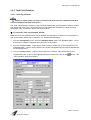
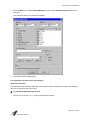
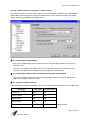
1. From the Configuration menu, select the Options option.
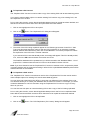
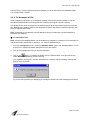
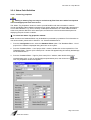
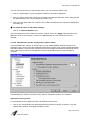
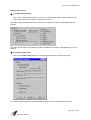
2. From the expandable/collapsible hierarchy of options, click on the Miscellaneous option. The
"Miscellaneous" window will appear.
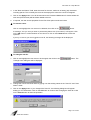
3. In the "Features" section, click on the "Enable Desktop Layouts" check-box. A tick will appear
when enabled. Click again to disable (no tick).
If you want to display the "Desktop Layout" window at this point, click on the "Show Desktop
Layouts window" check-box. A tick will appear when enabled. Click again to disable (no tick).
4. Click on the Apply button.
The "Desktop Layouts" option in the "Configuration" menu will now become active.
1.4.2 To save a Display Layout
1. Design your display layout by opening required Displays and arranging them in the order you
require. For example, you could resize and reposition the displays in a single window or you could
use the Virtual Screens to define your layout.
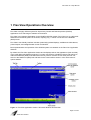
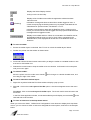
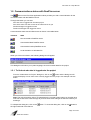
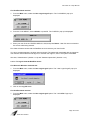
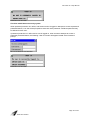
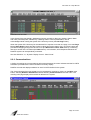
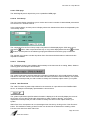
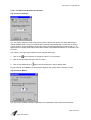
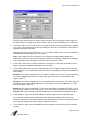
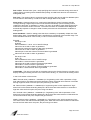
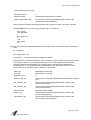
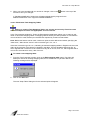
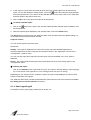
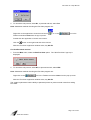
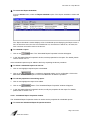
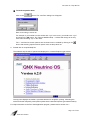
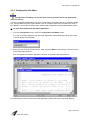
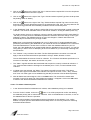
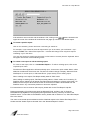
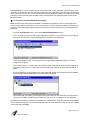
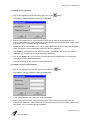
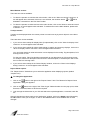
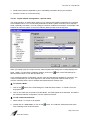
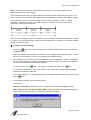
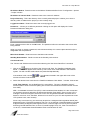
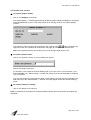
2. From the "Desktop Layout" window, click on the
will change to display the control buttons:
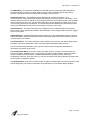
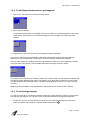
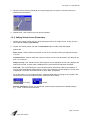
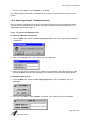
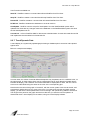
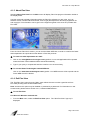
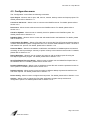
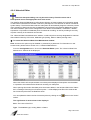
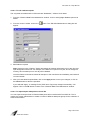
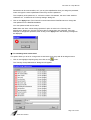
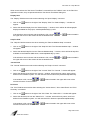
3. Click on the
(Show control buttons) button. The window
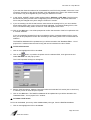
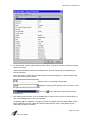
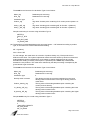
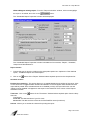
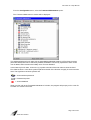
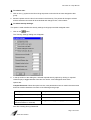
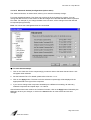
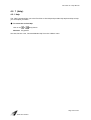
(Save current layout) button.
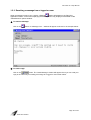
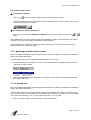
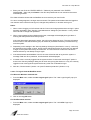
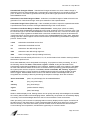
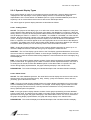
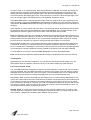
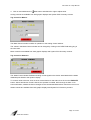
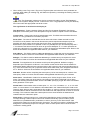
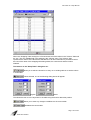
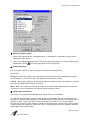
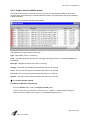
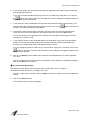
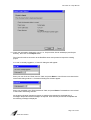
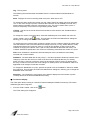
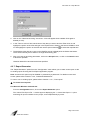
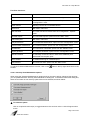
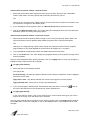
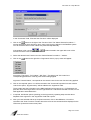
The "Save Desktop Layout" dialog box will appear:
Page 20 of 249
5000-0001-0040-E