1
Flex.View V3.1 Help Manual
4.4 Displays
4.4.1 Select Displays
The "Displays" menu provides access to graphic representations of plant processes or field data as
designed by the system implementor using the Flex.Builder application.
For Microsoft Windows look and feel:
Î To select a graphic display:
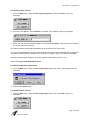
Click on the Displays menu button.
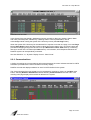
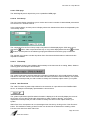
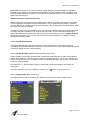
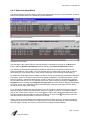
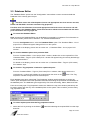
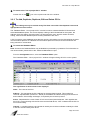
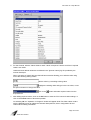
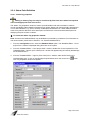
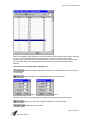
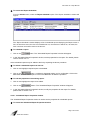
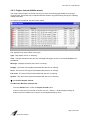
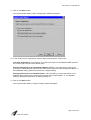
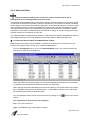
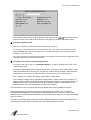
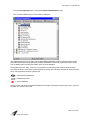
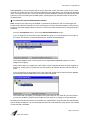
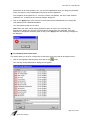
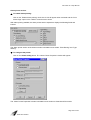
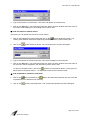
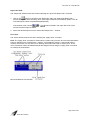
The "Select Display: *" window appears listing all defined graphic displays available for the project,
sorted alphabetically by name. This menu serves as an opening menu for the realtime display
process.
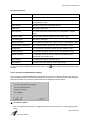
buttons
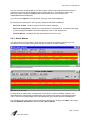
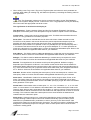
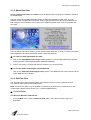
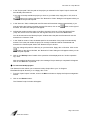
If all selections are not shown and the window is full, clicking on the
located in the toolbar will scroll the list left or right to the desired name. You can also use the scroll
bar if the required Display name is not visible.
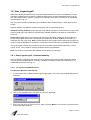
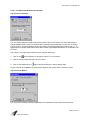
Î To locate a specific name:
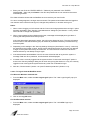
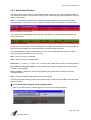
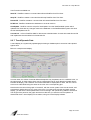
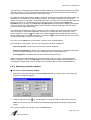
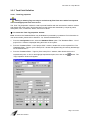
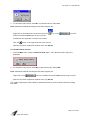
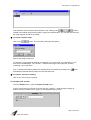
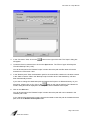
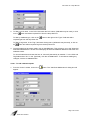
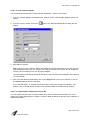
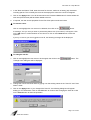
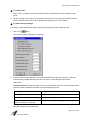
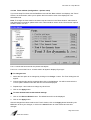
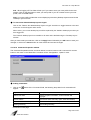
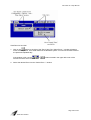
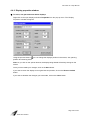
1. Click on the
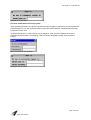
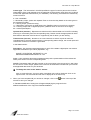
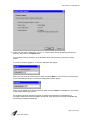
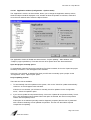
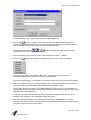
button. The "Set Filter" dialog box will appear:
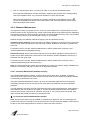
2. Enter a text string to search for. For example, if you wanted to locate all displays with "xyz" in the
name, you would enter "*xyz*" and click on the OK button.
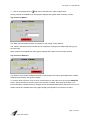
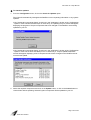
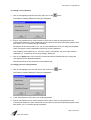
The "Select Display: *" window will change to list only those displays containing "xyz" in the name.
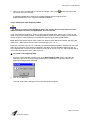
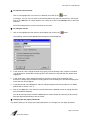
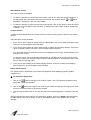
The "*" and last nine search patterns are saved and can be recalled by clicking on the
and selecting required search pattern from the drop-down list.
button
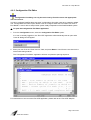
Î To select a display for viewing:
Click on the display name required.
Page 230 of 249
5000-0001-0040-E