1
Hence, press the button one time to power the MultiAdapter in the long range Green LED mode (with all built-in features
like Speech Equalizer - EQ, Auto Gain Control - AGC, etc.). A second push and hold for a couple of seconds of the button
will trigger the short or normal range Blue LED mode (which turns the unit on but bypasses all aforementioned features).
b) Whether you choose Green or Blue modes depends on the use of the device and is discussed in detailed hereunder.
Normally, Green LED is meant for the mini gooseneck boom of the TravelMike positioned at 30 cm or 12” or more from
the user; while Blue LED is designed for the TravelMike at shorter distances, VoIP (echo cancellation) and overly
sensitive headset microphones. Whatever the case, as with all new USB soundcards and microphones, run the Dragon
Audio Check or create a brand new user Profile for maximum performance, specially if using the Green LED.
2.2. Installation procedures for Windows® 8, 7, Vista®, XP®, 2000 & Mac OS® X or higher
Directly insert the SpeechMatic USB MultiAdapter to a USB port of the computer with care. DO NOT USE any multiple USB
Splitter or USB Hub device to connect to the computer. The special USB extension cable is provided in case it is needed. The
Indicator Light (LED) of the base unit will light up in Red. If the unit does not initialise - check that the card is properly inserted in
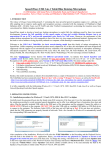
the USB port. Wait a few seconds for Windows® to automatically install the corresponding USB sound drivers:
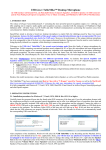
After completion of the installation, Windows® will select the 'SpeechMatic USB MultiAdapter' ('USB TableMike' in the images
above) as the Recording and the Playback Device, and will make it the default for ALL applications. Hence, you will not hear any
playback if a Speaker, Headset or Earset is not plugged in the Sound out or Headset jack of the card. To change this setting,
with Windows® 7, right-click the Speaker Icon in the lower right hand corner of the Windows® System Tray (Systray) and choose
'Playback devices'. Click the 'Mixer' link to open the 'Volume Mixer'. Select 'Speakers' and choose another available Device to
be used (normally the built-in PC Speaker). The procedure is similar under Windows® 8, Vista®, XP® and 2000.
You can also go to 'Control Panel', 'Sound' and select the 'Playback' tab to achieve the same result. Also, in the 'Sound' window
click the 'Recording' tab and check that the 'SpeechMatic USB MultiAdapter' ('USB TableMike' in the image hereby) is the
'Default Device'. Select and click-right on it. Click 'Properties', 'Advanced' and choose '1 channel, 16 bit, 44100 Hz --or 48000
Hz (DVD Quality)':