1
a)
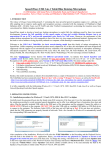
First, NaturallySpeaking® will check your sound devices. If you only have one in your PC, you will not get the first
window because you do not need to make a selection. If you have more than one soundcard installed, it will ask you to
choose which one you wish to utilise. Select 'SpeechMatic USB MultiAdapter' ('USB TableMike' in the image hereby)
and click 'Next' in the first window. Position yourself within the recommended distance from the SpeechMatic USB
MultiAdapter microphone capsule depending on your LED color mode and ambient noise. Click 'Next' again:
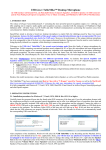
b) Click the 'Start Volume Check' button and read the text until it turns grey. Read at your normal pace and voice level,
making short pauses (3 to 5 seconds) at each punctuation sign. In this way, both your voice and pauses (silence) will
be sampled. DO NOT SHOUT OR YELL if the 'Gain' bar at the right hand side of the first window does not move or
moves very little. After the text turns grey again, click 'Next'. Repeat the previously outlined process in the second
window by clicking 'Start Quality Check' and then 'Finish':
To ensure that you get the most optimal signal-to-noise ratio, run the 'Check Microphone' process in the environment in which
you will be dictating. That is, if you are going to be dictating into a low or moderate noise environment, be sure that you run it
under those conditions. If your background environment changes during the course of the day, always rerun it again. Also, it is
recommended that you rerun the process periodically if you are continuously dictating for long periods of time because both your
environment and voice tend to change. You are recommended to use our unique FlexyMikes Single or Dual Ear which are
optimised for maximum performance with the SpeechMatic USB MultiAdapter:
- http://www.tablemike.com/en/flexymike-single-best-headset-speech-recognition.php
- http://www.tablemike.com/en/flexymike-dual-best-headset-speech-recognition.php).
If you wish to use the SpeechMatic USB MultiAdapter under Green LED and LOW ambient noise with your current User Profile,
you MUST ALWAYS perform an additional Extended Training. This is because the audio characteristics of the SpeechMatic
USB MultiAdapter are significantly different from any other type of USB microphone, as you can easily hear when playing back
your dictation. In principle, it may happen that the overall accuracy degrades slightly from what you were getting with your
previous microphone and current Profile. It is also important to understand that it may take a little time for your current Profile to
adjust to your previous performance and accuracy. In addition, each user is different and some may not require this Extended
Training and period of use, while others may. However, DO NOT OVER TRAIN. Otherwise, your Profile can become
excessively large which can effect overall performance (i.e., increase latency) and will not gain you any improvement in accuracy.
DO NOT SHOUT OR YELL either when training or dictating...
If you wish to use the SpeechMatic USB MultiAdapter as a high quality voice recorder; instead of a digital one, to automatically
transcribe your recordings, configure it under Normal mode (Blue LED) for close dictation and download our free and
forthcoming TableMike Recorder application or any other from the web. Save your recording in a standard sound format such as:
wav, MP3 or wma with at least 16 bits, 11,025 Hz, mono. NaturallySpeaking® 12 or higher will transcribe more effectively