1
Equinox Manual
Equinox in ArtPro
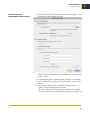
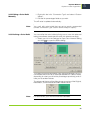
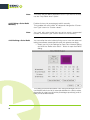
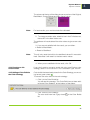
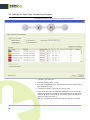
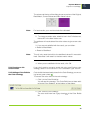
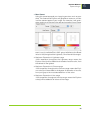
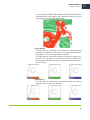
The schema at the top of the dialog shows a preview of the Original,
Best Match, Current Values and New Values colors.
Note:
For best results, your monitor should be calibrated.
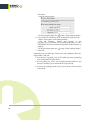
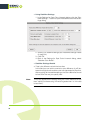
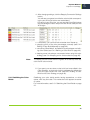
2. To change a certain value, select its box in the Fix Values row,
then edit it in the New Values row.
The software will recalculate all the other values to give a new color
build.
3. If you are not satisfied with the result, you can either:
• Reset to Best Match,
• Reset to Stabilized.
Note:
This will only reset the build to the stabilized values if it was stabilized. Otherwise it will reset it to the best match values.
4. When you are satisfied with the result, click OK.
4.4.4 Keeping an Ink
Unconverted
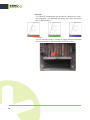
If you don’t want to convert a certain ink using your Equinox color
strategy, select “Do not convert” in its “Conversion Type” column.
4.4.5 Adding a Color Build to
the Color Strategy
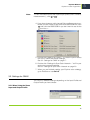
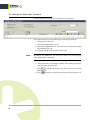
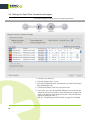
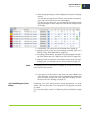
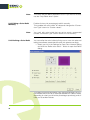
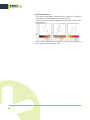
Color builds that are already stored in the Color Strategy you are using have a green check .
To store a new color build in the color strategy:
1. Click it in the Color Builds list.
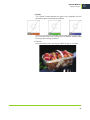
You will see the message “This Color Build has not been added to the Color Strategy” at the bottom of the dialog.
2. Click “Add to Color Strategy”.
The color build now has a grey check
list.
in the Color Builds
37
4