1
Accounts Receivable User Manual
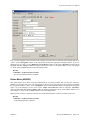
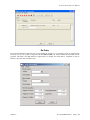
Marketing Text Filename
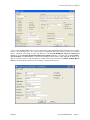
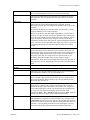
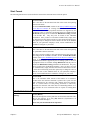
This field is used for a marketing text filename up to twenty (20)
characters (alpha/numeric) to define a text or html type file to be used in
conjunction with display mechanisms on an Internet Web site. Keep in
mind, when in the UNIX operating system, filenames are case sensitive.
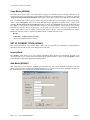
Item Image Filename
This field is used for an image filename up to twenty (20) characters
(alpha/numeric) to define image file to be used in conjunction with
display mechanisms on your local pc or an Internet Web site. Keep in
mind, when in the UNIX operating system, filenames are case sensitive.
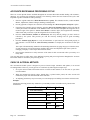
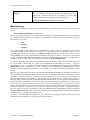
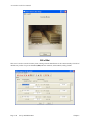
To utilize the “View Image” feature on the Inventory Item, the image
file must be in a JPG or BMP format. The entire path name to where the
image resides must be included in this field. The default directory would
be the Infinity POWER program directory unless otherwise defined.
You may use the “Browse” button to look for and select the image file.
Keep in mind, when using the “View Image” feature the best results for
image display would be 186 X 265 pixels.
Audio Filename
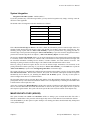
This field is used for an audio filename up to twenty (20) characters
(alpha/numeric) to define any type of audio file to be used in conjunction
with audio mechanisms on an Internet Web site. Keep in mind, when in
the UNIX operating system, filenames are case sensitive.
Video Filename
This field is used for a video filename up to twenty (20) characters
(alpha/numeric) to define any type of video file to be used in conjunction
with display mechanisms on an Internet Web site. Keep in mind, when in
the UNIX operating system, filenames are case sensitive.
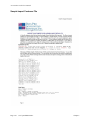
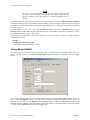
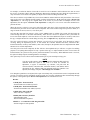
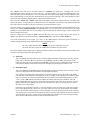
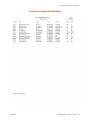
Cost Layers
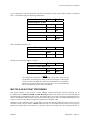
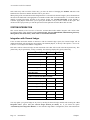
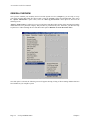
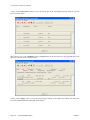
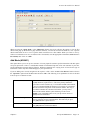
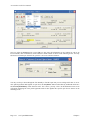
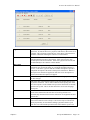
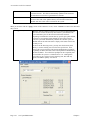
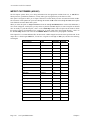
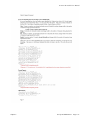
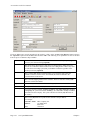
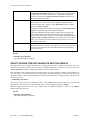
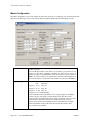
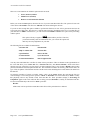
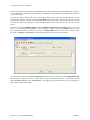
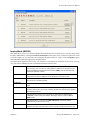
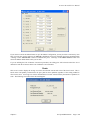
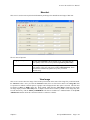
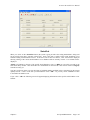
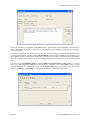
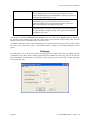
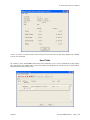
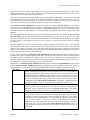
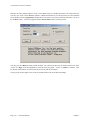
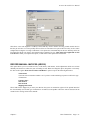
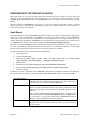
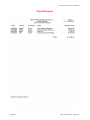
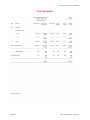
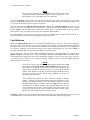
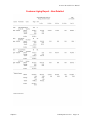
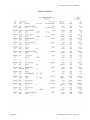
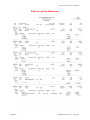
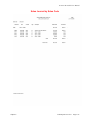
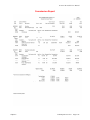
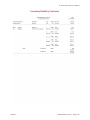
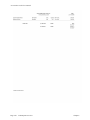
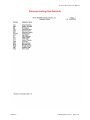
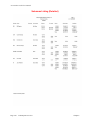
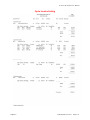
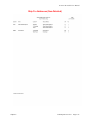
This button is designed to display the various cost layers accumulated for the quantities currently on hand. As the
following screen illustrates, the screen will show Item # for each unique cost layer based on a different price layer
that the item was purchased. The system will show the Cost Date, Description, Quantity of the item at that layer,
which vendor it was purchased from, the Vendor’s Invoice #, the unit cost and the total cost. The screen will
become a scrolling screen depending on how many layers of prices there are. This is an inquiry screen only and no
changes will be allowed.
Page 2-116
Set Up and Maintenance
Chapter 2