1
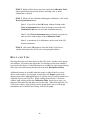
tones, each followed by a pause, and then a more rapid series of 3
ascending tones. The final 3 ascending tones are an indication of a
complete measurement. Also, as the measurement is being performed, the
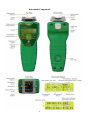
Measurement Status Indicator LED on the top of the instrument (just
above the display) will flash green, and turn to steady green when the
measurement has been successfully completed.
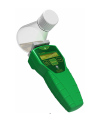
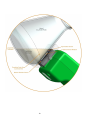
Note 2: If the Verification Cup is not kept in constant contact with
the Measurement Window for the full measurement period (a
maximum of 6 seconds), the speaker will play 3 low tones (if the
speaker driver is enabled), and the Measurement Status Indicator
LED will briefly turn red. The bottom line of the display will
briefly read “unstable contact”. This means that the measurement
was unsuccessful. Repeat Step 4 until a successful measurement
has been completed.
Note 3: If constant contact is maintained between the Verification
Cup and instrument, but the signal varies excessively during the
measurement period, the bottom line of the display will indicate
“unstable reading”. If the readings are stable, but the reading is not
uniform across the Measurement Window, the bottom line of the
display will indicate “Insuff. Fluid?”. In either of these cases, the
measurement will need to be repeated. If the Verification Cup is
correctly positioned and the Verification Cup and Measurement
Window are clean, but you are unable to collect a successful
measurement after several tries, please contact BugLab technical
support.
STEP 5: Compare the measurement result to the allowed range of values
on the Instrument Calibration Sheet that was provided with the instrument.
If the measurement falls within the allowed range, you have successfully
verified the instrument performance.
Note 4: If the measurement value is outside of the allowed range,
try cleaning the sensor face and the verification cup, and repeat
steps 1-5. Repeated failure of the instrument may indicate the need
for repair or re-calibration at BugLab. In this case, contact
BugLab technical support.
8