1
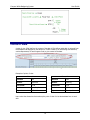
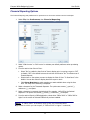
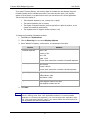
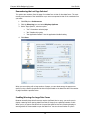
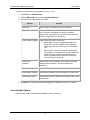
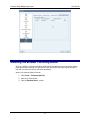
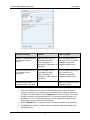
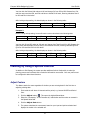
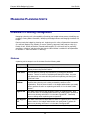
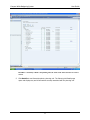
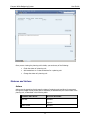
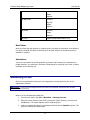
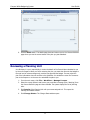
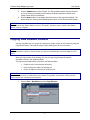
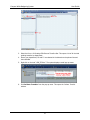
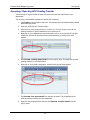
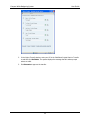
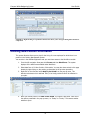
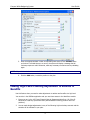
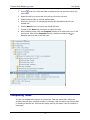
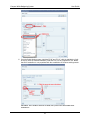
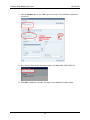
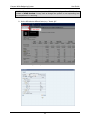
Campus-Wide Budgeting System User Guide If you select ―Currency Setting‖, the currency values in the data form are displayed using the formatting initially set for individual currencies. If you select another option, your selection applies to all currencies, in all data forms to which you have access in the current application. You can control the display of: The thousands separator (none, comma, dot, or space) The decimal separator (dot or comma) The display of negative numbers (a minus sign before or after the number, or the number surrounded by parentheses) The displayed color for negative numbers (black or red) To change the formatting of displayed numbers: 1. Click File, then Preferences. 2. Click the Planning icon and select Display Options. 3. Under ―Number Formatting‖, select options, as summarized in this table: OPTION Thousands Separator EXAMPLE None: 1000 Comma: 1,000 Dot: 1.000 Space: 1 000 You can enter values with or without a thousands separator. Decimal Separator Dot: 1000.00 Comma: 1000,00 You can enter values with or without a decimal separator. Negative Sign Prefixed Minus: -1000 Suffixed Minus: 1000Parentheses: (1000) Negative Color Black: Negative numbers are black Red: Negative numbers are red 4. Click Save. Note: Formatting selections take effect when you click outside the cell. If you select a setting other than “Use Application Default” for the thousands separator or the decimal separator, you must change both separators with the “Use Application Default” option. You cannot select the same option for the thousands and decimal separators. 27