1
Chapter 2 : Tutorial
Prepared By:
Consulting Firm Name and Location
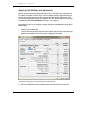
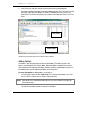
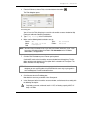
Leave the Summary Info dialog box open for the next exercise.
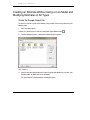
Creating the Model Estimate
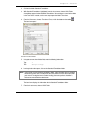
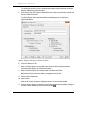
You use the Cost Models tab of the Summary Info dialog box to choose the model
and enter key parameters about the building.
1.
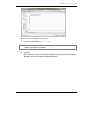
Click the Cost Models tab.
BSD CostLink/AE displays the tab.
2.
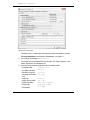
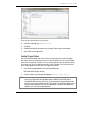
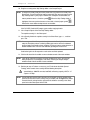
Under Cost Models, click the button for Commercial. Then, from the drop-down list,
select Fire Station, 2 Story.
3.
The building size has been automatically filled in from the information you entered on the
General tab, although you can also enter or edit the area here. For the Building
Perimeter, type in 310.
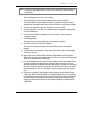
NOTE: The model building parameters are listed at the bottom of the Cost Models tab. If the
building being designed differs drastically from the parameters listed, the cost
estimate is unlikely to be highly accurate.
4.
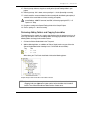
Select exterior closure and framing assemblies by clicking on the arrow for the pull-down
list and choosing Decorative Concrete Block / Steel Joists.
5.
Review other model building parameters at the bottom of this tab. Note that several of
these parameters may be adjusted, but RS Means strongly suggests that these not be
modified, because significant alterations may invalidate the cost estimate results. For
example, changing the number of floors from 2 to 3 could change the model results in
unpredictable ways.
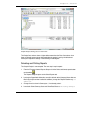
Model Additives
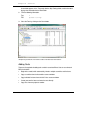
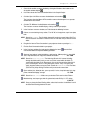
Next, you use the Model Additives tab of the Summary Info dialog box to select additional
cost items for this Cost Model.
1.
Click the Model Additives tab.
2.
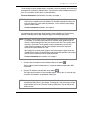
Select appropriate additives for this project by inputting a quantity in the quantity field. For
example, you may want to add kitchen appliances, clothes lockers, and an elevator. Note
that the cost for each additive is automatically computed.
BSD CostLink/AE User Manual
15