1
New User Orientation
Hi-Tech Software Solutions
Attach a Photo to Resident’s EMR
Through Edit Medical Record, you can add a photo of the resident to the Demographics screen.
NOTE: Save photos as jpeg files (JPG) to the PICTURES folder on Hi-Tech DATA drive, or to
another folder and path that you have defined through:
Libraries > Clinical Profile > Ok, Ok, Resident Photo Storage Path.
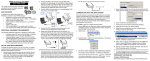
1. Click Attach Picture. The screen will default to your PICTURES folder or other path that you
have defined. See NOTE above.
2. Choose a photo from the Image list. The photo will be displayed.
3. Click Ok
4. The photo will be added to the resident’s Demographics screen.
G:\HITECH\Webinars\Webinar Docs\NewUser.doc Printed 1/2/13
Page 11