1
66
User's Guide
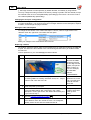
Step
Action
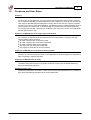
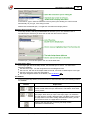
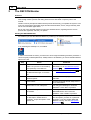
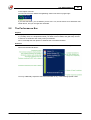
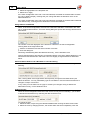
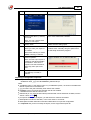
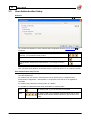
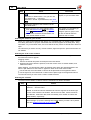
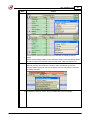
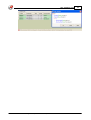
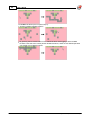
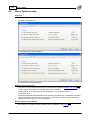
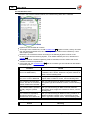
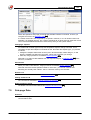
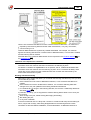
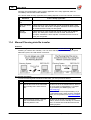
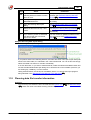
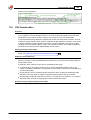
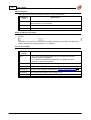
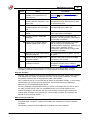
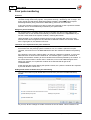
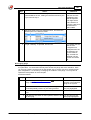
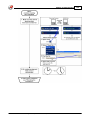
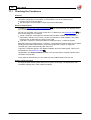
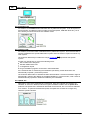
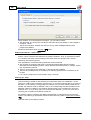
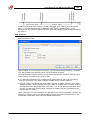
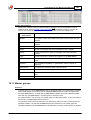
When you have dragged it some way down, a cross appears upon the floating
header - then release the mouse button, and the header has been removed. It
automatically occurs in the "Add Remove Columns" box.
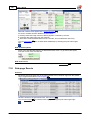
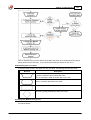
Sorting the containers
You can change the sorting order of the containers as described in Selecting the order of the
containers 60 .
You set up the filter as described in Setting up a Filter
4.4
66 .
Setting up a Filter
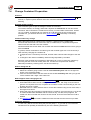
Overview
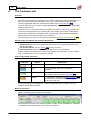
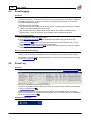
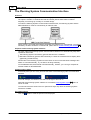
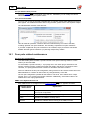
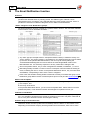
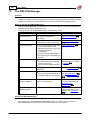
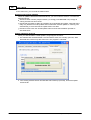
You define a filter to specify a certain subset of all containers to be shown in the Container
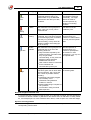
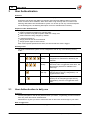
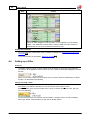
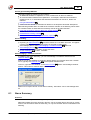
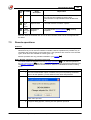
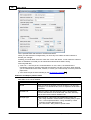
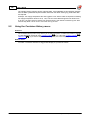
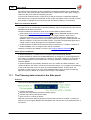
List. Filters can be applied to more columns at a time. Columns having filter applied are marked
like this:
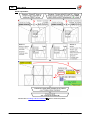
Filters can be rather simple or quite complex as you choose. There are several ways to define
the filter, as described in the following.
Initially selecting a Filter
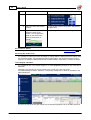
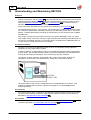
When you are working with a Container List having no filter applied, the first step in defining a
filter always is as follows. Note that you can also do this when a filter is active.
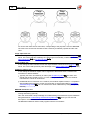
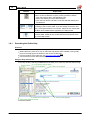
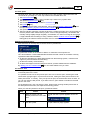
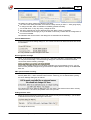
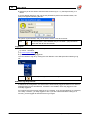
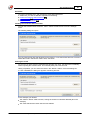
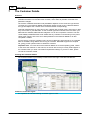
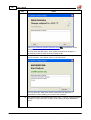
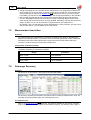
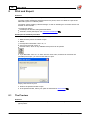
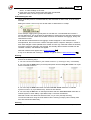
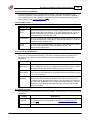
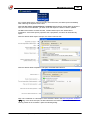
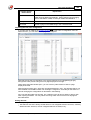
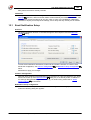
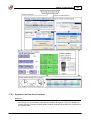
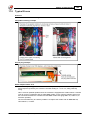
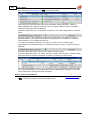
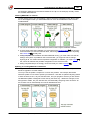
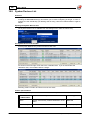
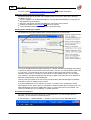
Move the mouse cursor onto the header of the column of interest (if there are more, just pick
one for a beginning):
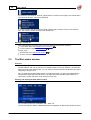
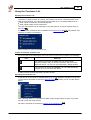
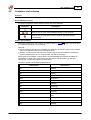
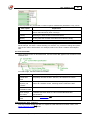
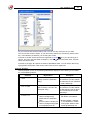
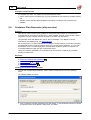
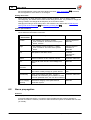
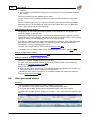
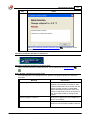
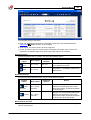
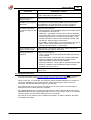
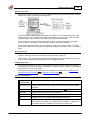
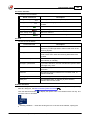
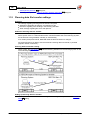
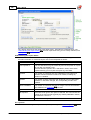
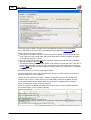
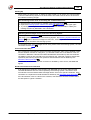
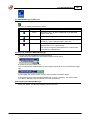
As soon as the mouse cursor moves over the header, it changes colour, and the small filter
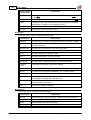
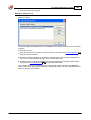
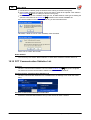
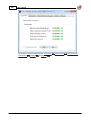
button gets visible. Click the button to open the list of filter options:
© 2015 Emerson Climate Technologies - Transportation Solutions ApS