1
4. Playback through TV
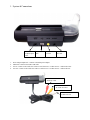
The ESP Cradle system could be used to connect the ESP to a TV/Projector for external large screen display.
?
?
?
?
?
?
?
?
?
Connect the Power Adapter to the Cradle into the “DC 5V” labeled Jack
Connect the AV Cable into the “AV OUT” Jack on the Cradle
Connect the AV Cable Red and White connectors to the “Audio-IN” Jack on the TV/Projector
Connect the AV Cable Yellow connector to the “Video-IN” Jack on the TV/Projector.
Select the appropriate TV Channel to receive the Audio/Video-In signal
Dock the ESP into the Cradle system
Turn On the Wolverine ESP
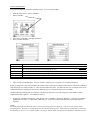
From the “Home Screen” go to “Options”
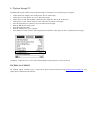
Select and Press “Cradle AVOUT” and using the joystick switch the “OFF’ option to “ON” as displayed in below figure
Turning the “Cradle AVOUT” to “ON” will switch the display from the ESP screen to the TV screen.
TECHNICAL SUPPORT
For technical support, warranty service, or paid service please contact Wolverine Data at [email protected] or by
calling 949-251-9888 M-F 9:00-5:00 PST